
PC gaming can become frustrating when a powerful-looking computer still struggles with frame drops, long loading times, background applications, unnecessary processes, or sudden performance slowdowns....
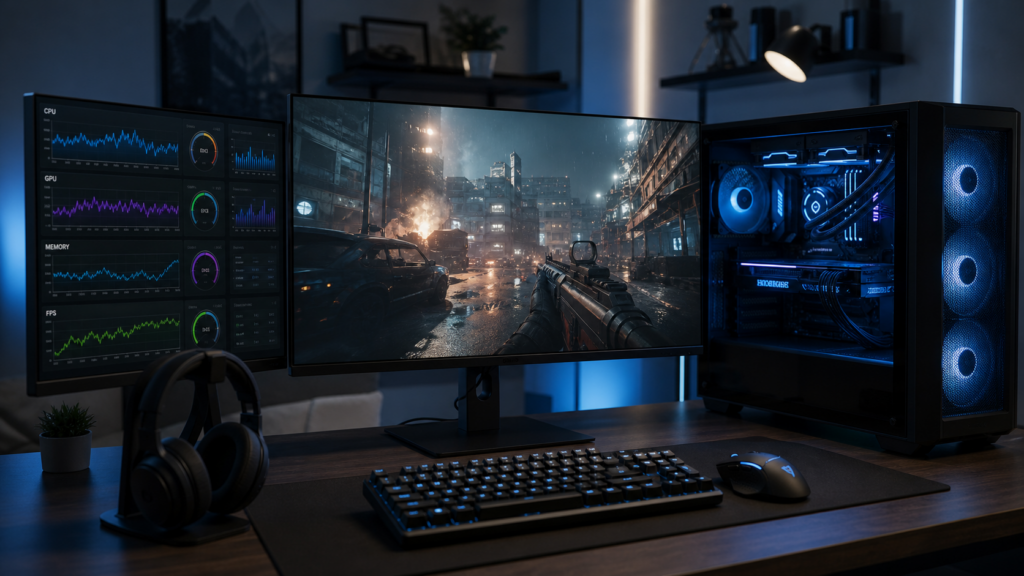
PC gaming can become frustrating when a powerful-looking computer still struggles with frame drops, long loading times, background applications, unnecessary processes, or sudden performance slowdowns. A Game Booster is designed to help manage these problems by reducing unnecessary system activity and prioritizing resources for gaming. While it cannot magically turn outdated hardware into a high-end gaming machine, the right optimization approach can help your existing PC use its available resources more efficiently.
Modern games can place heavy demands on the processor, graphics card, memory, storage, and network connection at the same time. Even when your computer technically meets the recommended requirements, background programs may compete for system resources.
Web browsers, cloud-sync tools, automatic updates, launchers, communication apps, monitoring utilities, and unnecessary services can all consume memory or processing power.
A gaming optimization tool can simplify the process of reducing these distractions. Instead of manually closing programs and adjusting settings each time you start a game, optimization features can help prepare the computer for gaming more quickly.
This guide explains how game boosters work, what benefits they may provide, which features matter most, how they compare with manual optimization, and what you should check before using one.
What Is a Game Booster?
A game booster is a type of performance optimization tool intended to improve the environment in which PC games run.
Its primary purpose is usually to reduce unnecessary background activity and make more system resources available for gaming.
Depending on the software, it may close non-essential applications, reduce startup processes, temporarily pause certain services, optimize memory usage, adjust power settings, manage network activity, or help identify programs that interfere with performance.
The exact features vary between tools.
Some game boosters focus on simple one-click optimization, while others provide advanced controls for users who want to manage system processes manually.
The main goal is not to increase your hardware specifications. Instead, the software attempts to make better use of the hardware you already have.
Why PC Gaming Performance Can Slow Down
Many gaming problems are not caused by one single issue.
Performance is usually influenced by several components working together.
Understanding these factors makes it easier to see where optimization software may help.
Background Applications
Programs running in the background can consume RAM, processor time, storage activity, and network bandwidth.
You may not notice them during normal desktop use, but their impact can become more obvious when a demanding game is running.
Common examples include browsers with many tabs, cloud backup applications, video editing tools, messaging programs, software updaters, and unnecessary launchers.
Reducing background activity can help the game access more available resources.
Limited RAM
Modern games may use a significant amount of memory.
If the computer has limited RAM and several programs are open at the same time, the system may begin relying more heavily on storage-based virtual memory.
This can create slower response times, stuttering, or longer loading periods.
Closing unnecessary software before gaming can reduce memory pressure.
High CPU Usage
The processor handles many game-related calculations while also running Windows and background applications.
When several demanding processes compete for CPU time, game performance can become less consistent.
A gaming optimization tool may identify processes that can be temporarily paused or closed.
Storage Performance
Game loading times and asset streaming can be affected by storage speed.
A slow hard drive may create longer loading screens or delayed texture loading compared with a solid-state drive.
A game booster cannot transform a mechanical hard drive into an SSD, but reducing unnecessary disk activity may help prevent other programs from competing with the game.
Thermal Throttling
When a CPU or graphics card becomes too hot, the system may reduce its operating speed to protect the hardware.
This process is known as thermal throttling.
Software optimization cannot fully solve poor cooling, dust buildup, failed fans, or dried thermal paste.
However, reducing unnecessary processor activity can sometimes lower background heat generation.
Network Congestion
Online games depend on stable network performance.
Large downloads, cloud syncing, streaming, automatic updates, and other network-heavy tasks can increase latency or reduce available bandwidth.
Some gaming tools include network management features that help prioritize gameplay traffic or identify bandwidth-heavy applications.
How Does a Game Booster Work?
Most game booster tools follow a similar optimization process.
They scan the system for programs, services, and settings that may affect gaming performance.
The tool may then recommend or automatically apply temporary adjustments.
Closing Unnecessary Programs
One of the simplest functions is closing applications that are not needed during gaming.
This can free memory and reduce CPU activity.
For example, if several programs are running in the background while you play, closing them may leave more resources available for the game.
Managing Windows Services
Windows uses many services for networking, updating, printing, indexing, diagnostics, synchronization, and other functions.
Some optimization tools temporarily stop selected services while gaming.
This should be done carefully because certain services are necessary for normal system operation.
A well-designed tool should avoid disabling critical components.
Freeing System Memory
Some game booster utilities include memory management features.
These functions may encourage Windows to release unused cached memory or reduce the memory usage of unnecessary applications.
Memory optimization can sometimes help systems with limited RAM, although modern operating systems already manage memory dynamically.
Adjusting Power Settings
Windows power plans can influence processor behavior.
Some systems use balanced or energy-saving settings that reduce performance when maximum speed is not considered necessary.
A gaming optimization tool may switch the PC to a higher-performance power mode while a game is running.
This can help the processor respond more aggressively to demanding workloads.
Prioritizing Game Processes
Certain optimization tools may increase the priority of the active game process.
This tells Windows to give the game more attention compared with less important background tasks.
Process priority can help in specific situations, but excessively changing priorities can create instability or affect other essential software.
Controlling Network Activity
Some game boosters include network-focused features.
They may help reduce background downloads, limit unnecessary network applications, or prioritize gaming-related traffic.
This can be particularly useful for multiplayer games where latency and connection stability are important.
Main Benefits of Using a Game Booster
Easier System Optimization
One of the biggest benefits is convenience.
You can manually close programs, change power settings, disable services, and monitor resource usage every time you launch a game.
A game booster can combine several of these actions into one process.
This makes optimization more accessible for users who do not want to adjust Windows settings manually.
More Available System Resources
Closing background applications can make additional RAM and CPU resources available.
This is particularly useful on systems that are close to the minimum requirements for a game.
High-end computers may notice a smaller difference because they already have enough processing power and memory.
More Stable Gaming Sessions
Performance consistency is often more important than achieving the highest possible frame rate.
A computer that regularly changes between smooth gameplay and sudden slowdowns can feel worse than one that maintains a slightly lower but stable frame rate.
Reducing unpredictable background activity may help create more consistent performance.
Reduced Interruptions
Updates, notifications, scheduled scans, and background tasks can interrupt gaming.
A gaming mode may temporarily reduce some of these distractions.
This can help create a cleaner and more focused gaming session.
Better Resource Visibility
Some gaming optimization software provides system monitoring.
This can help users see CPU usage, GPU usage, memory consumption, temperature information, or other performance data.
Monitoring can be useful when diagnosing why a game is running poorly.
Can a Game Booster Increase FPS?
This is one of the most common questions about gaming optimization software.
The answer depends on the computer.
A game booster may help improve frame rates when background applications are consuming significant system resources.
For example, if several programs are using the processor and memory while a game is running, closing them may allow the game to perform better.
However, the improvement may be small on a system that is already optimized.
A game booster also cannot overcome serious hardware limitations.
If a graphics card is unable to render a game at the selected settings, closing background programs will not suddenly provide high-end GPU performance.
The most realistic benefit is often better consistency rather than a dramatic FPS increase.
Game Booster and Low-End PCs
Low-end and older computers may benefit more from optimization because they have fewer spare resources.
A computer with limited RAM, an older processor, or slower storage can become overloaded more easily when multiple programs are running.
Reducing unnecessary processes may therefore make a more noticeable difference.
For example, a system with 8 GB of RAM may struggle if a browser, chat application, launcher, cloud-sync tool, and game are all running simultaneously.
Closing those extra applications can free memory for the game.
However, users should still pay attention to game requirements.
Optimization cannot compensate for hardware that is far below the minimum specifications.
Game Booster and High-End Gaming PCs
Powerful gaming computers can also use optimization software, but the benefit may be different.
A high-end system may already have enough CPU power and RAM to handle background programs without affecting game performance significantly.
In this situation, the main advantages may include convenience, automatic gaming modes, notification control, resource monitoring, and network management.
The actual performance improvement may be relatively small.
Users with powerful systems should focus more on stability, drivers, cooling, game settings, and proper hardware configuration.
Important Features to Look for in a Game Booster
Not all optimization tools offer the same features.
Understanding what matters can help you choose software that fits your needs.
One-Click Optimization
A simple optimization button can make the software easy to use.
It should automatically detect unnecessary background processes and temporarily reduce their resource usage.
The changes should also be reversible.
Process Management
A good process manager shows which programs are consuming CPU and memory.
This allows users to understand what is slowing down the system.
Avoid tools that close processes without explaining what they are.
Game Detection
Automatic game detection can make optimization more convenient.
The software may recognize when a supported game launches and enable gaming mode automatically.
This reduces the need for manual adjustments.
Performance Monitoring
Useful monitoring tools can display CPU usage, RAM usage, GPU activity, temperatures, and other system information.
These metrics can help identify bottlenecks.
Network Optimization
For online gaming, network management can be valuable.
Look for features that help identify bandwidth-heavy applications or unnecessary downloads.
However, remember that software cannot fix problems caused by poor internet service, weak Wi-Fi signals, or distant game servers.
Automatic Restoration
Temporary gaming changes should normally return to their previous state after you stop playing.
This is important because some background services may be useful during normal computer use.
A reliable game booster should restore settings automatically.
Game Booster vs. Manual PC Optimization
Many of the tasks performed by game booster software can also be completed manually.
The difference is convenience and accessibility.
Manual Optimization
You can use Task Manager to close unnecessary applications.
You can disable unwanted startup programs through Windows settings.
You can select a high-performance power plan.
You can pause cloud synchronization.
You can stop downloads and update tasks.
You can also adjust graphics settings manually.
This approach gives you complete control.
However, it requires more technical knowledge and repeated effort.
Automated Optimization
A game booster simplifies these steps.
Instead of changing several settings individually, the software can apply a predefined gaming profile.
This is useful for beginners or anyone who wants a quicker process.
The best approach depends on your experience and preferences.
How to Prepare Your PC for Gaming
A game booster can be part of a larger optimization strategy.
For the best results, you should also maintain your computer properly.
Update Graphics Drivers
Graphics drivers can affect game performance, compatibility, and stability.
GPU manufacturers regularly release updates that address bugs or improve support for newer games.
Keeping drivers updated can help reduce graphical errors and crashes.
Keep Windows Updated
Operating system updates can include security improvements, driver support, stability fixes, and performance changes.
However, avoid installing large updates immediately before an important gaming session.
Allow enough time to restart and test the system afterward.
Close Browser Tabs
Modern browsers can consume large amounts of memory.
If you have dozens of tabs open, closing unnecessary ones before gaming may free significant RAM.
This simple step can sometimes provide a noticeable improvement on computers with limited memory.
Disable Unnecessary Startup Programs
Many programs automatically launch when Windows starts.
Over time, this can make the system slower and leave unnecessary applications running in the background.
Review startup programs regularly and disable software that does not need to launch automatically.
Keep Enough Free Storage
Storage drives usually perform better when they are not completely full.
Games also need additional space for updates, temporary files, shader caches, and saved data.
Keeping sufficient free storage can reduce potential performance problems.
Optimizing In-Game Graphics Settings
Software optimization is only one part of improving gaming performance.
Graphics settings often have a much larger impact on FPS.
Resolution
Higher resolutions require the graphics card to render more pixels.
Reducing the resolution can significantly improve performance on weaker GPUs.
Shadows
High-quality shadows can place a heavy load on the GPU.
Reducing shadow quality is often an effective way to gain performance while keeping most of the game’s visual quality.
Anti-Aliasing
Anti-aliasing smooths jagged edges but can increase graphics workload.
Lowering the anti-aliasing level may improve FPS.
Texture Quality
Texture quality primarily depends on GPU memory.
If your graphics card has limited VRAM, using extremely high-resolution textures may cause stuttering or texture-loading problems.
Ray Tracing
Ray tracing can create realistic reflections and lighting, but it can also reduce frame rates significantly.
Disabling or reducing ray-tracing settings may provide a major performance improvement.
View Distance
Games that render large environments may use more CPU and GPU resources when view distance is increased.
Reducing this setting can help weaker systems.
Why Stable FPS Matters
Many players focus only on the highest possible FPS number.
However, consistency is equally important.
A game running between 90 and 100 FPS may feel smoother than one constantly jumping between 60 and 140 FPS.
Sudden frame-time spikes can create visible stuttering.
Reducing unnecessary background activity may help minimize some of these fluctuations.
This is one reason a game booster can be useful even when it does not dramatically increase the average frame rate.
Understanding Ping and Latency
FPS and network latency are different.
FPS describes how quickly your computer renders frames.
Ping measures how long data takes to travel between your computer and the game server.
A game booster may help network performance by reducing unnecessary background traffic.
However, it cannot completely control ping.
Latency also depends on your internet provider, physical distance from the server, routing quality, Wi-Fi strength, network congestion, and server performance.
Wired Connection vs. Wi-Fi for Gaming
For competitive online gaming, a wired Ethernet connection often provides more consistent performance.
Wi-Fi can be affected by distance, walls, interference, other wireless devices, and congestion.
If you experience sudden ping spikes, switching to Ethernet may provide a more noticeable improvement than any software setting.
When Ethernet is not practical, using a strong Wi-Fi connection and positioning the router properly can help.
Game Booster for Competitive Gaming
Competitive games place strong emphasis on responsiveness.
Small delays can affect aiming, movement, timing, or reaction-based actions.
Players often optimize their systems carefully by reducing background applications, using appropriate graphics settings, improving network stability, and maintaining consistent frame rates.
A game booster can simplify part of this process.
However, competitive performance still depends heavily on hardware, monitor refresh rate, peripherals, network quality, and game settings.
Does a Game Booster Reduce Input Lag?
It may help indirectly in certain situations.
If the computer is overloaded with background tasks, system responsiveness can suffer.
Reducing unnecessary CPU and memory usage may help the system process game input more consistently.
However, input lag can also come from graphics settings, display technology, V-Sync, controller polling, monitor response time, or network latency.
Game booster software alone cannot solve every type of input delay.
Can a Game Booster Prevent Crashes?
A game booster is not a complete crash-prevention solution.
Games can crash for many reasons.
Common causes include unstable drivers, corrupted game files, overheating, insufficient RAM, incompatible software, unstable overclocking, or bugs within the game itself.
Reducing background applications may improve stability if resource shortages are contributing to crashes.
However, persistent crashes should be investigated separately.
Game Booster Safety
Users should be careful when choosing any system optimization software.
A game booster may interact with processes, services, memory management, network settings, or startup configurations.
Use software from a trustworthy provider and review the options before applying major changes.
Avoid tools that promise unrealistic results such as instantly doubling hardware performance.
Also be cautious about software that disables critical system services without clear explanations.
A proper optimization tool should make changes that can be reversed.
Common Myths About Game Booster Software
Myth: It Upgrades Your Hardware
Software cannot physically increase your graphics card power, processor cores, RAM capacity, or storage speed.
Optimization simply attempts to use available resources more efficiently.
Myth: Every PC Will Gain Huge FPS
Results vary greatly.
A heavily cluttered PC may see an improvement, while an already optimized gaming system may notice very little difference.
Myth: More Free RAM Always Means Better Gaming
Unused memory is not automatically beneficial.
Windows intentionally uses available RAM for caching and system operations.
The important issue is whether unnecessary applications are consuming memory that the game genuinely needs.
Myth: Game Boosters Fix Internet Speed
They may reduce competing network traffic, but they cannot increase the physical speed of your internet plan or reduce the distance to a game server.
When a Hardware Upgrade Makes More Sense
Optimization has limits.
If your PC regularly struggles with modern games even after reducing graphics settings and background activity, a hardware upgrade may provide better results.
Upgrade RAM
More memory can help systems that frequently run out of RAM.
This is especially useful when gaming alongside communication apps, browsers, or streaming software.
Upgrade to an SSD
Replacing an older hard drive with an SSD can dramatically improve loading times and overall system responsiveness.
Upgrade the GPU
The graphics card is usually the most important component for visual performance.
A stronger GPU can allow higher resolutions, graphics settings, and frame rates.
Upgrade the CPU
CPU upgrades can help games that depend heavily on simulation, physics, artificial intelligence, or high frame rates.
How to Test Whether a Game Booster Helps
Do not rely only on how the game feels.
You can compare performance before and after optimization.
Choose the same game, location, graphics settings, and resolution.
Record average FPS, minimum FPS, CPU usage, GPU usage, RAM consumption, and frame-time consistency.
Then enable the optimization settings and repeat the test.
This gives you a clearer idea of whether the changes actually help your specific system.
Avoid Changing Too Many Settings at Once
When optimizing a computer, make changes gradually.
If you modify many Windows settings, driver settings, game settings, and background processes at the same time, it becomes difficult to identify which change improved or harmed performance.
Start with simple adjustments.
Close unnecessary programs.
Test the game.
Then change power settings.
Test again.
Continue until you find the configuration that provides the best balance.
Game Booster for Streaming and Gaming
Gaming while streaming creates additional resource demands.
Streaming software may use the CPU, GPU, RAM, network connection, and storage simultaneously.
A game booster can help by closing unrelated background programs.
However, it should not interfere with essential streaming software.
Users who stream should create an optimization profile that keeps broadcasting tools, microphone software, camera utilities, chat applications, and required plugins running.
The goal is to remove unnecessary processes rather than everything in the background.
Game Booster for Laptops
Gaming laptops face additional challenges because they must balance performance, battery usage, and heat.
For gaming, connecting the laptop to its power adapter is usually important because many laptops reduce performance when running on battery.
A game booster may also switch the system to a higher-performance power mode.
However, cooling remains important.
Make sure air vents are not blocked and consider cleaning dust buildup if temperatures are unusually high.
A cooling stand may also improve airflow for some laptop designs.
Best Practices for Long Gaming Sessions
Long gaming sessions can increase system temperatures and resource usage.
Keep ventilation areas clear.
Monitor temperatures if you suspect overheating.
Close programs you do not need.
Avoid running unnecessary downloads in the background.
Restart the computer occasionally if it has been running for many days.
Make sure important drivers and the operating system remain updated.
These habits often provide greater long-term benefits than relying on a single optimization setting.
Who Should Consider Using a Game Booster?
A game booster may be useful for several types of users.
Beginners may appreciate automatic optimization because it removes the need to manage Windows processes manually.
Users with older computers may benefit from freeing limited CPU and memory resources.
Competitive players may use gaming modes to reduce interruptions and background activity.
Laptop gamers may use optimization tools to simplify power and performance settings.
Even experienced users may find automated profiles convenient when switching frequently between productivity and gaming.
Who May Not Need One?
Users with powerful gaming PCs and carefully optimized systems may see little performance improvement.
If you already close unnecessary applications, maintain drivers, manage startup software, use proper power settings, and monitor system resources, a separate game booster may not provide major benefits.
That does not make optimization software useless.
It simply means the value depends on the condition of the PC and how much manual optimization you already perform.
How to Choose the Right Game Booster
Before choosing any gaming optimization software, consider your actual needs.
Look for clear controls rather than unrealistic promises.
Check whether the software allows you to see which processes will be stopped.
Make sure changes can be reversed easily.
Consider whether you need network optimization, performance monitoring, automatic game detection, or only basic background-process management.
A simple tool may be enough for many users.
More features do not automatically mean better gaming performance.
Frequently Asked Questions
What is a Game Booster?
A Game Booster is software designed to optimize a PC for gaming by reducing unnecessary background activity, freeing system resources, adjusting selected settings, and helping games run in a cleaner performance environment.
Can a Game Booster really increase FPS?
It can improve FPS in some cases, especially when background applications are consuming significant CPU or memory resources. However, the improvement varies by system and cannot replace a hardware upgrade.
Is a Game Booster useful for low-end PCs?
Yes, low-end PCs may benefit more because they have fewer spare resources. Closing unnecessary applications and services can make additional memory and processing power available for games.
Can a Game Booster reduce gaming lag?
It may reduce performance-related stuttering or background network activity. However, internet lag can also be caused by poor Wi-Fi, server distance, congestion, or your internet connection.
Does a Game Booster damage the computer?
A properly designed optimization tool should not damage the computer. However, users should choose trustworthy software and avoid tools that make aggressive or unexplained system changes.
Should I use a Game Booster on a gaming laptop?
It can be useful for managing background processes and performance settings on a gaming laptop. Proper cooling, power connection, driver updates, and graphics settings remain equally important.
Is Game Booster software better than manual optimization?
It depends on the user. Manual optimization provides more control, while a Game Booster offers convenience by combining several common optimization steps into one process.
Can a Game Booster replace a graphics card upgrade?
No. Optimization software cannot replace physical hardware upgrades. If your GPU is significantly below a game’s requirements, upgrading the graphics card may provide a much larger improvement.
Conclusion
A Game Booster can be a useful tool for gamers who want a faster and simpler way to prepare their PC for gaming. By reducing unnecessary background activity, managing system resources, adjusting performance settings, and limiting distractions, optimization software can help create a smoother and more consistent gaming environment. The biggest improvements are usually seen on systems where too many programs or services are competing for limited resources. However, a booster should be viewed as one part of a complete gaming optimization strategy. Updated drivers, sensible graphics settings, sufficient RAM, reliable storage, good cooling, stable internet, and suitable hardware remain essential. When these elements work together, gamers can achieve better stability, more consistent performance, and a more enjoyable experience without relying on unrealistic performance promises.