
For solo indie developers, RPG studios, and game-jam teams, animating even a single 2D character's idle, walk, run, hurt, and combat cycles manually in Aseprite...
For solo indie developers, RPG studios, and game-jam teams, animating even a single 2D character’s idle, walk, run, hurt, and combat cycles manually in Aseprite or Photoshop routinely swallows twenty or more grueling hours of pixel drawing, which is why adopting a reference-consistent AI Sprite Generator changes indie production math completely. Instead of fighting drifting proportions from generic video tools, a dedicated AI Sprite Generator locks every frame tightly to your character reference and exports clean transparent-background loops ready for game engines.
Modern game-art workspaces like Sprite Flow combine controllable character animation (Classic 4 to 16 frames or Pro 32-frame loops at 8 FPS) with 8-direction turnarounds, batch NPC creation, tilesets, game maps, props, pixel-art fixing, and game audio inside one cohesive pipeline. In this complete guide, you will learn how an AI Sprite Generator maintains character consistency across seven art styles, compare Classic versus Pro and Flow models, and follow eight fast 2D sprite checks to ship polished game assets 10x faster.
Why Generic AI Art Tools Fail at Game Sprites and How an AI Sprite Generator Solves It
Anyone who has tried prompting a general image generator for a “16-bit warrior walk cycle sprite sheet” knows the immediate disaster that follows: frame three gains an extra sword, frame five shifts jacket color from crimson to purple, foot positions drift unpredictably across pixels, and solid white backgrounds require painful manual masking. A purpose-built AI Sprite Generator solves every one of those engine-breaking flaws by locking proportions, outfits, color palettes, and framing to a single uploaded or generated character base.
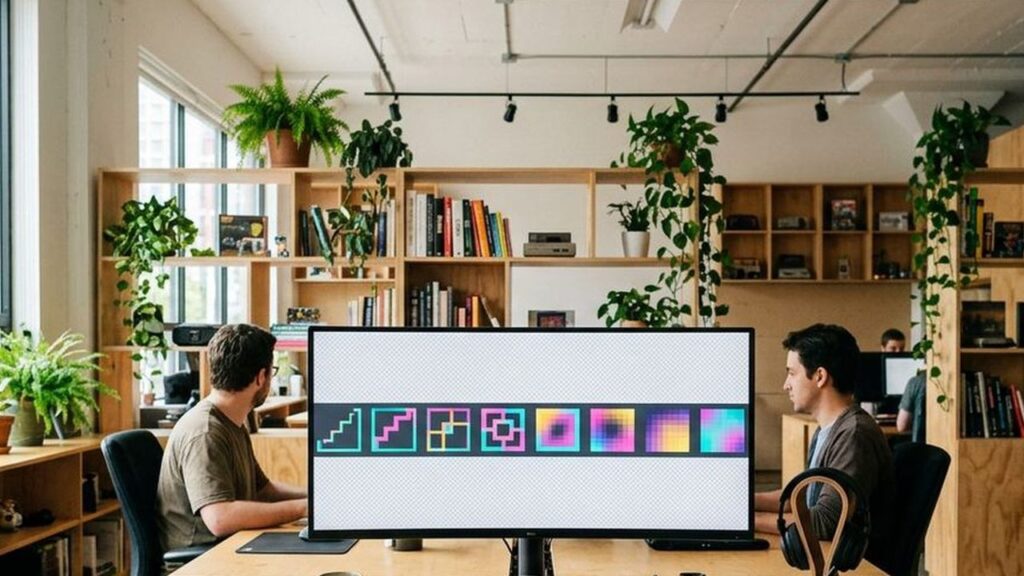
Inside Sprite Flow, the identical reference-locked pipeline produces smooth transparent-background loops across wildly diverse visual styles, including 16-bit pixel art, hi-bit pixel art, rubber-hose cartoon animation, chibi, flat vector, paper cutout, and painterly gouache, without forcing your studio into one repetitive visual look.
Three Game-Ready Capabilities Inside a Modern AI Sprite Generator
Purpose-built tooling around the core generator makes the difference between amusing concept GIFs and drop-in sprite sheets ready for Godot, Unity, or GameMaker.
Model Selection Across Flow 2, Flow 2 HD, and Flow 1
Choosing the right motion model inside an AI Sprite Generator aligns physics with your animation type: Flow 2 delivers faster generation with rock-steady framing ideal for idle, walk, run, and in-place combat animations; Flow 2 HD renders crisp high-definition outputs (20 credits, roughly 5 to 10 minutes) for flagship heroes; and Flow 1 unlocks bolder expressive motion suited to dramatic jumps or dissolve effects.
Classic vs Pro Frame Counts and Built-In Onion-Skin Editing
Classic mode generates snappy 4, 6, 8, 10, 12, or 16-frame retro loops, whereas Pro mode produces ultra-fluid 32-frame sequences at 8 FPS. Crucially, a built-in onion-skin frame alignment editor lets developers preview loop continuity and fix subtle foot-sliding before exporting sprite sheets.
Unified Project Workspace Beyond Single Characters
Because cohesive 2D games need worlds matching their heroes, platforms like Sprite Flow pair their AI Sprite Generator directly with Character Design, 8-Direction Sprite turnarounds, Batch NPC generation, Game Maps, AI Tilesets, Props, Sprite Replacement, Scene Asset Extraction, an AI Pixel Art Fixer, and Game Music/SFX tools.
Comparing Motion Models and Frame Modes Inside an AI Sprite Generator
Picking the optimal model and canvas settings upfront saves credits and reduces manual cleanup inside your 2D game engine.
| Model / Mode | Frame & Framing Profile | Best Practical Game Use Case | Turnaround & Credit Note |
|---|---|---|---|
| Flow 2 (Classic 4 to 16f) | Steady camera, tight retro frame budget | 16-bit walk cycles, idle breathing, retro enemies | Fastest turnaround, lean credit spend |
| Flow 2 (Pro 32f at 8 FPS) | Fluid 32-frame steady loop on alpha | Hero melee attacks, smooth run cycles, modern 2D | 10 credits standard Pro loop |
| Flow 2 HD | High-definition crisp detail preservation | Main playable characters, hi-res vector/gouache art | 20 credits, est. 5 to 10 minutes |
| Flow 1 | Bolder expansive silhouette displacement | Big leaps, knockbacks, magic dissolves, boss slams | Slower render for dramatic motion |
| 8-Direction Sprite Mode | Consistent turnaround across all 8 angles | Top-down RPGs, isometric tactics, strategy units | Single character base generates 8 views |
8 Fast 2D Sprite Checks for Production Results in an AI Sprite Generator
Game players notice jittering feet, inconsistent scale, and jagged outlines within two seconds of grabbing a controller. Run these eight fast checks whenever producing assets inside an AI Sprite Generator.
1. Start From a Clean Reference in Your AI Sprite Generator
Upload an unobstructed full-body PNG (or design one cleanly in Character Design first) showing clear limbs, distinct silhouette contrast, and readable footwear against a simple backdrop. Cropped knees or cluttered props confuse motion rigging inside any AI Sprite Generator, causing distorted ankles during walk and run loops.
2. Match Canvas Shape Inside Your AI Sprite Generator
Compact idle breathing, hurt flinches, and vertical hops fit cleanly inside a Square canvas with zero wasted texture atlas memory. Wide sword slashes, spear thrusts, staff casts, and running strides need a Horizontal canvas inside your AI Sprite Generator so weapon tips never clip awkwardly at frame edges.
3. Toggle Loop Mode Properly in Your AI Sprite Generator
Always enable Loop mode for idle, walk, run, swim, and hover animations so the final frame resolves seamlessly back into frame one without a jarring pop. Turn Loop off for one-shot combat attacks, hurt staggers, jump takeoffs, or death collapses that transition cleanly to another engine state.
4. Prompt Single Actions Inside an AI Sprite Generator
Describe one unmistakable game animation state per run (“brisk side-scrolling sword slash forward then quick recovery to guard stance, keeping feet grounded”) rather than chaining three combo attacks into one clip. Use the built-in Enhance Prompt helper when starting from brief ideas, then inspect the expanded phrasing to confirm no unwanted props crept in.
5. Align Foot Anchors in Your AI Sprite Generator Editor
Never drop raw exported sheets straight into Unity or Godot without verifying center-of-mass stability. Step through consecutive frames using the built-in onion-skin overlay inside your AI Sprite Generator so grounding contacts align neatly and your hero does not bob wildly left and right during an idle stance.
6. Polish AI Sprite Generator Outputs With a Pixel Art Fixer
Pure pixel-art games live or die by clean grid alignment and crisp mixel-free outlines. Whenever generating 16-bit or hi-bit pixel cycles, finish sprite sheets through an AI Pixel Art Fixer or strict nearest-neighbor scaling pass so every pixel locks sharply onto your game’s native resolution grid.
7. Batch 8-Direction Turnarounds in Your AI Sprite Generator
Top-down RPGs and strategy titles break immersion instantly when townsfolk or enemy squads look drawn by five unrelated artists. Anchor your cast to one cohesive visual template inside your AI Sprite Generator, generate all 8 directional views from one base hero, and run Batch NPC variations for armor tiers, colors, and class outfits together.
8. Budget Indie Releases Powered by an AI Sprite Generator
Slashing 2D sprite animation hours by 10x frees indie teams to polish level design, game feel, marketing trailers, and launch websites. When planning your studio’s game website, press kit portal, or interactive web storefront alongside asset creation in an AI Sprite Generator, map realistic web build expenses early using the website cost calculator.
Comparing Manual Pixel Art vs AI Sprite Generator Production
Seeing real production timelines side by side shows why solo developers, game-jam competitors, and mobile casual studios integrate an AI Sprite Generator directly into pre-production and live shipping pipelines.
| Production Milestone | Manual Frame-by-Frame Drawing | Reference-Locked AI Sprite Generator |
|---|---|---|
| Hero Idle + Walk + Attack + Hurt | 20 to 35 hours per character | 15 to 45 minutes including QA alignment |
| 8-Directional RPG Turnaround | 40+ hours across cardinal & diagonal views | Generated automatically from one hero base |
| 20 Distinct Village NPC Variants | Weeks of outsourced artist retainers | Single afternoon via Batch NPC workflow |
| Style Experimentation (Pixel vs Vector) | Prohibitively costly to redo whole sheets | Test 7 styles on one character base fast |
| Transparent Alpha Masking | Manual layer management throughout | Delivered ready on transparent background |
Engine Integration Best Practices After Exporting From an AI Sprite Generator
Smooth animation inside a browser preview translates effortlessly into 60 FPS gameplay when you follow three quick import habits inside Godot, Unity, or GameMaker.
Standardizing Grids After Exporting From an AI Sprite Generator
Keep identical cell dimensions across all animations belonging to the same character, such as 128×128 or 256×128 pixels per frame, and anchor your engine pivot consistently at bottom-center right beneath the character’s feet. Unified pivots guarantee zero sudden height snapping when transitioning rapidly from Idle to Run to Attack.
Tuning Playback Feel for AI Sprite Generator Loops
Pro 32-frame loops generated at 8 FPS feel lush for exploration walks, yet responsive action combat often feels punchier when you selectively drop anticipation frames or play impact frames at 12 to 15 FPS inside your engine’s animation state machine. Using an AI Sprite Generator gives you rich intermediate frames to trim selectively for tight arcade responsiveness.
Keeping Worlds Cohesive With Matching Maps, Tilesets, and Props
Characters drop cleanly into levels only when environmental scale, outline thickness, and color value match the foreground cast. Using companion AI Tileset, Game Map, and Game Prop tools inside the same project library as your AI Sprite Generator ensures grass tiles, stone walls, treasure chests, and heroes belong unmistakably to the same hand-crafted universe.
Scaling Complete 2D Character Rosters With an AI Sprite Generator
Generating one playable hero walk cycle proves how fast modern animation feels; scaling an entire playable RPG cast, twenty distinct enemy archetypes, and multi-tier armor upgrades without losing visual unity is where an AI Sprite Generator delivers its biggest commercial payoff. Structuring your project inside a clean studio pipeline ensures every sprite sheet feels hand-directed by one unified art lead.
Four Pipeline Habits for Multi-Character 2D Games Using an AI Sprite Generator
Indie teams shipping full Steam, Switch, or mobile releases rely on four repeatable organization rules inside their AI Sprite Generator workspace.
1. Build a Strict Character Scale and Silhouette Reference Sheet First
Before generating thirty separate NPCs inside an AI Sprite Generator, lock exact pixel height targets for your main hero, small critters, average townsfolk, and towering bosses. Exporting a quick lineup mockup ensures your goblin enemies never tower accidentally above your armored knight once dropped into level scenes.
2. Standardize Your Mandatory Core Animation Checklist Per Unit
Define an identical core state list for every character type inside your AI Sprite Generator: Hero units receive Idle, Walk, Run, Primary Attack, Secondary Cast, Hurt, and Defeat; basic village NPCs need strictly Idle, Walk, and Talk; boss monsters add dramatic Flow 1 heavy slam and dissolve animations. Standard checklists keep credit spending focused strictly on states players genuinely see on screen.
3. Combine Sprite Replacement and Scene Asset Extraction for Fast Iteration
Mid-development design pivots happen in every real game studio. Using companion Sprite Replacement and Scene Asset Extraction utilities alongside your AI Sprite Generator lets teams swap a hero’s cape color, upgrade bronze armor to enchanted steel, or extract clean decorative props directly from concept scenes without redrawing every walk cycle from zero.
4. Pair Visual Motion Loops With Cohesive Game Music and Sound Effects
An animated sword slash or 16-bit jump feels half-finished until crisp pixel foley lands right on the impact frame. Pairing your AI Sprite Generator character sheets with matching Game Sound Effects and Game Music inside one unified library speeds up playable vertical-slice demos dramatically during game jams and publisher pitches.
Optimizing Mobile Memory With AI Sprite Generator Sheets
While Pro 32-frame loops at 8 FPS look silky smooth on desktop monitors, packing fifty uncompressed 32-frame HD hero sheets onto a mobile casual build can inflate RAM usage quickly. Audit your exported sprite sheets from the AI Sprite Generator deliberately: keep lush 32-frame Flow 2 or Flow 2 HD loops for central playable heroes and flagship bosses, and use lean Classic 6-to-12-frame loops for background villagers and recurring projectile effects.
Trim excess transparent padding automatically with your engine’s sprite packer, preserve crisp nearest-neighbor filtering for 16-bit and hi-bit pixel art after passing outputs through an AI Pixel Art Fixer, and verify animations at true target gameplay zoom rather than solely at 400% browser preview magnification. Mastering that balance inside your AI Sprite Generator turns small solo teams into remarkably prolific 2D game studios.
Rapid Game-Jam and Vertical-Slice Blueprint Using an AI Sprite Generator
During a 48-hour game jam or a two-week publisher pitch sprint, art bottlenecks almost always force teams to ship stiff placeholder squares. Following a focused three-hour asset sprint inside an AI Sprite Generator gives your playable demo genuine visual charm without pulling programmers away from core gameplay code.
Hour-by-Hour Asset Sprint Inside an AI Sprite Generator
Spend hour one locking your hero silhouette inside Character Design and generating core Idle, Walk, Run, and Attack loops in Flow 2 via your AI Sprite Generator. Dedicate hour two to generating two distinct enemy types and a clean matching AI Tileset plus foreground props inside the same project workspace.
Use hour three to verify foot pivots inside the onion-skin editor, run any retro 16-bit sheets through the AI Pixel Art Fixer, add crisp Game Sound Effects, and import clean transparent sprite sheets straight into Godot or Unity. Executing this repeatable loop inside an AI Sprite Generator turns tiny solo studios into confident, rapid-shipping indie teams.
Maintaining Style Harmony Across Expanding 2D Game Worlds
As your indie title grows from a single playable demo into multi-biome levels packed with townsfolk, bosses, and interactive props, store one master visual palette card alongside your approved reference sheets inside the project folder. Feeding consistent silhouette proportions and lighting angles into your AI Sprite Generator ensures Act Three dungeon enemies still belong unmistakably inside the exact same handcrafted universe as your opening village.
Consistent asset discipline turns an AI Sprite Generator into a scalable long-term studio pipeline rather than a throwaway prototyping shortcut, helping tiny teams deliver cohesive commercial games powered by an AI Sprite Generator.
FAQ’s
What is an AI Sprite Generator and who is it built for?
An AI Sprite Generator creates reference-consistent 2D game character animations, directional turnarounds, and sprite sheets on transparent backgrounds in minutes, making it ideal for solo indie developers, game-jam teams, RPG/strategy creators, and mobile casual game studios.
How does an AI Sprite Generator keep character outfits and colors consistent?
Platforms like Sprite Flow anchor every generated animation sequence, 8-direction turnaround, and equipment variant directly to your uploaded character reference image so proportions, outfits, and palettes stay cohesive across idle, walk, run, and combat frames.
What is the difference between Classic mode and Pro mode in Sprite Flow?
Classic mode exports compact retro frame counts (4, 6, 8, 10, 12, or 16 frames) suited for classic pixel aesthetics, while Pro mode generates smooth 32-frame animations at 8 FPS with built-in onion-skin frame alignment previews.
Which art styles work inside a modern AI Sprite Generator?
Reference-locked workflows support diverse 2D styles from the same pipeline, including 16-bit pixel art, hi-bit pixel art, rubber-hose cartoon, chibi, flat vector, paper cutout, and painterly gouache animations on transparent backgrounds.
When should I pick Flow 2 versus Flow 1 or Flow 2 HD?
Choose Flow 2 for fast, steady framing on idle, walk, run, and in-place attacks; pick Flow 2 HD when flagship hero characters need maximum high-definition clarity; and use Flow 1 for bold, expansive motions like big jumps or dissolve effects.
Can I import sprites from an AI Sprite Generator directly into Unity or Godot?
Yes. Because animations export on transparent backgrounds with consistent frame grids, you can slice sprite sheets cleanly inside Unity, Godot, GameMaker, or Construct using standardized bottom-center foot pivots.
Conclusion
Countless promising indie games stall halfway through prototype stage not from weak gameplay mechanics, but from the sheer manual bottleneck of drawing hundreds of consistent character animation frames. A reference-locked AI Sprite Generator breaks that bottleneck cleanly, turning one character design into cohesive walk, run, idle, combat, and 8-directional loops on transparent backgrounds in minutes.
Follow the eight fast checks above: start from crisp full-body neutral references, pick Horizontal canvases for wide weapon swings, verify foot anchors inside the onion-skin editor, run retro sprites through a pixel-art fixer, and lock unified bottom-center engine pivots. Powered by a disciplined AI Sprite Generator pipeline, small teams can ship rich, visually unforgettable 2D games on realistic indie timelines.