
The global entertainment landscape has undergone a monumental paradigm shift over the past two decades. From the early days of physical DVD rentals and standard...
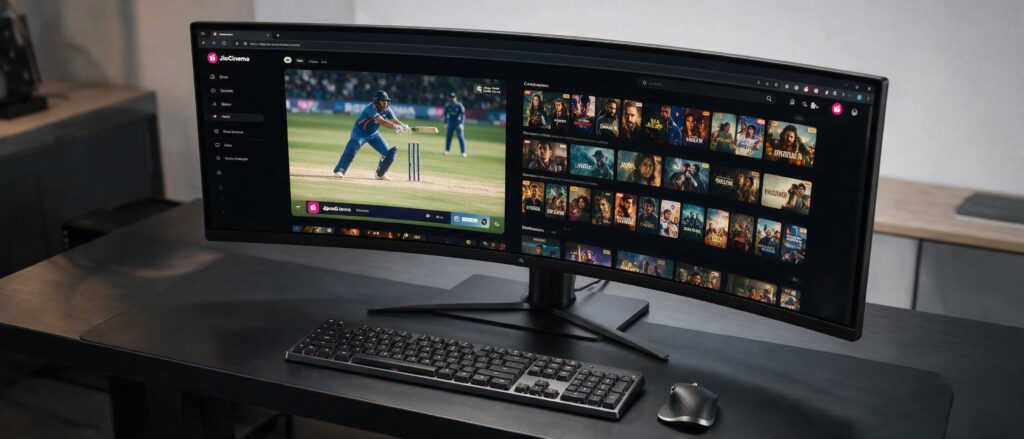
The global entertainment landscape has undergone a monumental paradigm shift over the past two decades. From the early days of physical DVD rentals and standard broadcast television to the pioneering subscription video-on-demand (SVOD) model introduced by Netflix, digital media consumption has transformed how audiences discover content. Today, deploying Jio Cinema for PC represents the modern zenith of this evolution, merging free-to-air mega-sporting events with premium international studio catalogs from HBO, Peacock, and Warner Bros. Discovery. Streaming on a desktop or laptop computer provides visual clarity, responsive multitasking, and audio fidelity that handheld smartphones cannot replicate. By mastering the installation methods, system optimizations, and playback configurations for desktop streaming, users can unlock the full potential of next-generation OTT entertainment.
What Is Jio Cinema for PC and How Has OTT Streaming Evolved?
Jio Cinema for PC refers to accessing JioCinema’s extensive streaming ecosystem—spanning live sports, original series, regional cinema, and international television—on desktop and laptop personal computers running Windows, macOS, or ChromeOS.
| OTT Evolution Era | Dominant Streaming Model | Primary Hardware Platform | Content Delivery Paradigm |
|---|---|---|---|
| Era 1: Early SVOD (2007–2015) | Paid subscription only (e.g., Early Netflix) | Desktop web browsers & smart TVs | On-demand movie libraries; standard-definition buffering |
| Era 2: Platform Fragmentation (2015–2020) | Studio-specific apps (Disney+, Prime, Hulu) | Mobile devices & streaming sticks | Exclusive original series; 1080p Full HD; regional rollouts |
| Era 3: Live Sports Disruption (2020–2023) | Hybrid AVOD / SVOD models | Smart TVs & smartphones | 4K live sports broadcasting; multi-angle camera feeds |
| Era 4: Super-Ecosystems (2024–Present) | Consolidated mega-platforms (JioCinema) | Universal ecosystem (Mobile, TV, PC) | Free 4K sports + premium global studio licensing |
When evaluating platforms like Jio Cinema for PC, the transition from traditional television to digital streaming began with Netflix’s pioneering on-demand library. However, the Indian streaming market revolutionized global OTT economics by decoupling sports broadcasting from expensive pay-TV packages.
When JioCinema secured digital streaming rights for marquee events like the Indian Premier League (IPL) and the FIFA World Cup, it dismantled traditional subscription paywalls by offering 4K ultra-high-definition live streams for free. This massive audience scale accelerated the demand for optimized desktop viewing, prompting millions of users to seek reliable methods for running Jio Cinema for PC.
What Are the Best Methods to Access and Run Jio Cinema for PC?
Desktop users can access Jio Cinema for PC through three distinct technical methods, depending on their operating system, hardware capabilities, and interface preferences.
| Method Classification | Execution Architecture | Operating System Support | Best Suited User Scenario |
|---|---|---|---|
| 1. Native Web Browser Streaming | Direct HTML5 playback via official website | Windows, macOS, Linux, ChromeOS | Fastest access; zero installation required; instant streaming |
| 2. Progressive Web App (PWA) | Chrome/Edge standalone app window shortcut | Windows 10/11, macOS, ChromeOS | App-like desktop icon; dedicated window; zero browser clutter |
| 3. Android Emulator Emulation | Android VM (BlueStacks, LDPlayer, Nox) | Windows 10/11, macOS (Intel) | Accessing mobile-only UI features; offline downloads simulation |
| 4. Windows Subsystem for Android | Native Android APK virtualization | Windows 11 (x64 / ARM64) | Seamless native window execution without third-party emulators |
1. Method 1: Direct Web Streaming for Jio Cinema for PC via Web Browsers
The most efficient and resource-friendly way to enjoy Jio Cinema for PC is through modern Chromium-based web browsers such as Google Chrome, Microsoft Edge, Brave, or Mozilla Firefox. Simply navigating to the official web portal delivers instant access to 4K live sports and high-bitrate video streams with hardware-accelerated decoding.
2. Method 2: Installing Jio Cinema for PC as a Progressive Web App (PWA)
For users who prefer a dedicated desktop application icon without browser URL bars, tabs, or bookmarks, installing Jio Cinema for PC as a Progressive Web App (PWA) is the ideal solution. In Chrome or Edge, clicking the “Install App” icon in the address bar creates a standalone desktop program that launches instantly from the Windows Start Menu or macOS Dock.
3. Method 3: Running Jio Cinema for PC via High-Performance Android Emulators
For power users wanting to emulate the Android tablet interface on a computer, Android virtualization software like BlueStacks 5 or LDPlayer 9 allows users to run the mobile APK directly on PC hardware.
What System Requirements Are Needed to Stream 4K Content on Jio Cinema for PC?
Streaming high-bitrate 4K video and 60fps live sports on a personal computer requires evaluating hardware components to ensure stutter-free playback.
| Hardware / Network Component | Minimum Specification (1080p Full HD) | Recommended Specification (4K Ultra HD) | Purpose in Streaming Performance |
|---|---|---|---|
| Central Processor (CPU) | Intel Core i3 / AMD Ryzen 3 (Dual-Core) | Intel Core i5 / AMD Ryzen 5 (Quad-Core+) | Manages browser process threads and audio decoding |
| Graphics Processing Unit (GPU) | Integrated Intel HD Graphics 620 | NVIDIA GTX 1650 / AMD Radeon RX 570 / Apple M-Series | Hardware acceleration for HEVC, VP9, and AV1 video codecs |
| System Memory (RAM) | 4 GB DDR4 RAM | 8 GB to 16 GB DDR4/DDR5 RAM | Prevents browser tab crashing during multi-hour live streams |
| Display Monitor | 1080p IPS panel (60 Hz) | 4K UHD Display (3840×2160) with HDR10 | Delivers pixel-perfect clarity and rich color saturation |
| Internet Bandwidth | 10 Mbps stable broadband | 25 to 50 Mbps low-latency fiber | Prevents dynamic resolution drops during peak traffic hours |
| Operating System | Windows 10 (64-bit) / macOS 11 Big Sur | Windows 11 / macOS 14 Sonoma | Supports modern GPU drivers and Widevine L1 DRM security |
1. The Role of GPU Hardware Acceleration
Streaming on Jio Cinema for PC relies on advanced compression codecs such as H.264, H.265 (HEVC), and AV1. When GPU Hardware Acceleration is enabled in your browser settings, video decoding tasks are offloaded from the CPU to the graphics card’s dedicated video engine, reducing CPU load from 80 percent down to under 5 percent.
2. Digital Rights Management (DRM) and Widevine Levels
When running Jio Cinema for PC, to protect premium studio content, Jio Cinema for PC utilizes Google Widevine DRM. Browsers like Google Chrome and Microsoft Edge support Widevine Level 1 / Level 3, allowing authenticated streams to play at maximum resolution while maintaining encrypted content protection.
Global OTT Platform Showdown: How JioCinema Compares to Competitors
When streaming on Jio Cinema for PC, understanding how the platform compares to global giants highlights the strengths of its content catalog and commercial model.
| Streaming Platform | Primary Content Strengths | Pricing Model | Maximum Video Resolution | Simultaneous Desktop Streams |
|---|---|---|---|---|
| JioCinema | Live Sports (IPL, Cricket, Olympics), HBO, Peacock, Viacom18 | Free AVOD (Sports) + Affordable Premium SVOD | 4K Ultra HD (HDR10 / Dolby Vision) | 4 Devices Simultaneously |
| Netflix | Global Originals, Award-Winning Cinema, Anime | Premium Monthly Subscription (Tiered) | 4K Ultra HD (Dolby Vision / Atmos) | 4 Devices (Premium Plan) |
| Disney+ Hotstar | Disney, Marvel, Star Wars, Indian Domestic Cinema | Annual / Monthly Paid Subscription | 4K Ultra HD | 2 to 4 Devices |
| Amazon Prime Video | International Originals, Blockbuster Rentals, MGM | Prime Membership Bundle | 4K Ultra HD (HDR10+) | 3 Devices Simultaneously |
| Apple TV+ | Prestige Original Dramas, High-Bitrate Documentaries | Monthly Paid Subscription | 4K Ultra HD (Industry-Leading Bitrate) | 6 Family Sharing Devices |
1. The Content Monopoly: International Studio Powerhouses
Users streaming Jio Cinema for PC enjoy extensive content libraries, as while competitors rely on expensive subscriptions, JioCinema unified top-tier American studio catalogs under a single, highly competitive subscription tier. Users watching Jio Cinema for PC gain direct access to legendary HBO titles (such as Game of Thrones, Succession, and The Last of Us), NBCUniversal Peacock shows, and Paramount+ blockbusters alongside local Indian content.
2. Multi-Language Audio and Subtitle Customization
For users running Jio Cinema for PC, the platform delivers extensive linguistic accessibility. On PC, viewers can switch between over a dozen regional audio feeds—including Hindi, English, Tamil, Telugu, Bengali, and Marathi—while enjoying synchronized subtitles.
Exclusive Desktop Features: Why Watching Live Sports on PC Excels
Watching live sports matches using Jio Cinema for PC unlocks interactive features that are far more engaging on desktop monitors than on mobile touchscreens.
| Interactive Desktop Feature | Functional Mechanism | User Benefit on PC Screens |
|---|---|---|
| Multi-Cam Angle Switching | Select from 6+ camera feeds (Stump-cam, Bird’s-eye, Cable) | View the match from your preferred tactical perspective |
| 4K Ultra HD 60fps Feeds | High-framerate video stream encoding | Eliminates motion blur during high-velocity ball tracking |
| Interactive Live Statistics | Real-time graphical overlays and pitch heatmaps | Analyze bowler speeds, run rates, and field placements live |
| Hype Mode & Fan Commentary | Alternate audio tracks featuring casual & celebrity commentary | Customizes the commentary style to match personal preferences |
| Seamless Desktop Multitasking | Picture-in-Picture (PiP) and split-screen browser support | Monitor live scores in a corner window while working on documents |
1. Multi-Camera Angle Selection
When watching live sports on Jio Cinema for PC, Jio Cinema for PC allows viewers to break away from the default television director’s feed. Users can click to view exclusive camera angles—such as behind-the-bowler, batter focus, tactical high-wide angle, or wicketkeeper POV—taking full advantage of wide computer monitors.
2. Picture-in-Picture Multitasking
For professionals utilizing Jio Cinema for PC on desktop workstations, native browser Picture-in-Picture (PiP) functionality allows the video stream to pop out into a resizable, floating window that stays on top of spreadsheets, coding editors, and email clients.
Step-by-Step Guide: Setting Up Jio Cinema for PC on Windows and Mac
Follow this simple tutorial to configure the best viewing experience on your desktop computer in under two minutes.
| Installation Step | Target Platform | Action Required | Expected Outcome |
|---|---|---|---|
| Step 1: Open Modern Browser | Windows 10/11 or macOS | Launch Google Chrome, Microsoft Edge, or Brave | Modern HTML5 web environment ready |
| Step 2: Navigate to Web Portal | Browser URL Bar | Enter the official JioCinema web address | Homepage media catalog loads instantly |
| Step 3: Log In via Phone OTP | Account Authentication | Enter mobile number and verify via instant SMS OTP | Access unlocked for watchlist and premium tiers |
| Step 4: Install Desktop PWA | Address Bar Action | Click the “Install” or “Create Shortcut” button | Desktop app icon generated in Start Menu / Dock |
| Step 5: Select 4K Quality | Video Player Settings | Click gear icon on player; set resolution to 2160p (4K) | Crystal-clear ultra-high-definition playback |
- Step 1: Open Google Chrome or Microsoft Edge: To run Jio Cinema for PC seamlessly, ensure your web browser is updated to guarantee support for modern Widevine DRM protocols.
- Step 2: Visit the Official Streaming Portal: To access Jio Cinema for PC, enter the web address in your browser. The responsive web interface automatically formats for desktop screen resolutions.
- Step 3: Authenticate with Your Registered Number: When setting up Jio Cinema for PC, click the “Login” button in the upper-right corner. Enter your mobile number, receive a one-time password (OTP) via SMS, and log in to sync your subscription profile.
- Step 4: Install the Desktop Shortcut: To install Jio Cinema for PC as a standalone app, in Chrome click the three-dot menu, select “Save and Share,” and click “Install JioCinema.” This creates an independent desktop window that operates like a native software application.
- Step 5: Configure Audio and Video Output: Once inside Jio Cinema for PC, click on any movie or live sports match, open the player settings menu, and set video quality to “High” or “4K” while configuring your PC’s audio output to multi-channel stereo or surround sound.
Troubleshooting Common Errors on Jio Cinema for PC
When using Jio Cinema for PC, if you encounter streaming interruptions, black screens, or audio issues on your computer, apply these proven technical fixes.
| Streaming Problem | Underlying Technical Cause | Immediate Corrective Solution |
|---|---|---|
| Black Screen with Audio Only | Hardware acceleration conflict or outdated GPU drivers | Toggle Hardware Acceleration in browser settings; update GPU drivers |
| Continuous Video Buffering | Corrupted browser cache or DNS routing lag | Clear browser cache/cookies; switch DNS to Google (8.8.8.8) or Cloudflare (1.1.1.1) |
| Error Code: Content Unavailable | Active VPN or proxy server masking actual location | Disable third-party VPNs and proxy extensions in your browser |
| Audio Out of Sync with Video | Bluetooth latency or browser audio buffer desync | Switch audio output device; refresh browser tab to re-align stream |
| Resolution Capped at 720p | Widevine DRM downgraded or browser zoom scaling issue | Reset browser zoom to 100%; verify Widevine component update in chrome://components |
1. Resolving Black Screen Errors in Jio Cinema for PC
In Jio Cinema for PC, a black screen with functioning audio is almost always caused by an incompatibility between your browser’s hardware acceleration pipeline and your graphics card driver. To fix this, navigate to Browser Settings > System > disable “Use graphics acceleration when available,” restart the browser, and reload the stream.
2. Disabling VPNs and Ad-Blockers
When streaming on Jio Cinema for PC, because content streaming rights are geo-restricted, running an active Virtual Private Network (VPN) will trigger geo-blocking error messages. Temporarily disable VPN extensions and whitelist the streaming domain on your ad-blocking software to ensure smooth video delivery.
Network Optimization: Maximizing Bandwidth and Reducing Latency on PC
Ensuring smooth 4K playback requires optimizing your home networking environment to eliminate packet loss and jitter.
- Prefer Wired Ethernet over Wi-Fi: To maximize Jio Cinema for PC streaming quality, connecting your desktop directly to your router using a Cat6 Ethernet cable eliminates wireless interference and delivers maximum data throughput.
- Select 5 GHz Wi-Fi Bands: When running Jio Cinema for PC over Wi-Fi, connect your computer exclusively to the 5 GHz or 6 GHz Wi-Fi band rather than the crowded 2.4 GHz frequency.
- Close Background Download Applications: Before launching 4K streams on Jio Cinema for PC, terminate bandwidth-heavy tasks such as Steam game updates, torrent clients, and cloud backups before initiating 4K live sports streams.
- Flush DNS Cache Regularly: To resolve network routing issues on Jio Cinema for PC, open Command Prompt on Windows (or Terminal on Mac) and execute
ipconfig /flushdns(orsudo dscacheutil -flushcacheon macOS) to eliminate outdated server routes.
Frequently Asked Questions
Is streaming Jio Cinema for PC free on desktop computers?
Yes, live sports broadcasts, news channels, and a vast selection of movies and daily TV shows are completely free to stream on PC, while international studio catalogs require an affordable premium subscription.
Do I need to install an Android emulator to run Jio Cinema for PC?
No, you do not need an emulator; you can stream directly through any modern web browser or install the official Progressive Web App (PWA) for a clean, native desktop experience.
Can I stream 4K ultra HD live sports on Jio Cinema for PC?
Yes, JioCinema broadcasts major live sporting events in full 4K Ultra HD resolution, which can be selected directly within the video player settings on compatible 4K desktop monitors.
Why is my Jio Cinema for PC showing a black screen with audio playback?
A black screen with audio is typically caused by a hardware acceleration glitch or an outdated graphics driver; disabling hardware acceleration in your browser settings usually resolves the issue.
Can I stream Jio Cinema for PC on a Mac computer?
Yes, JioCinema streams flawlessly on macOS through Safari, Google Chrome, Microsoft Edge, or Brave browsers without requiring third-party software.
How do I use the multi-camera angle feature on Jio Cinema for PC?
During live sports broadcasts, click the camera icon located in the bottom control bar of the video player to toggle between various camera angles, including bird’s-eye and stump-cam views.
Conclusion
The evolution of digital media from early subscription libraries to modern, all-encompassing super-platforms has redefined home entertainment, and streaming on a personal computer provides the ultimate viewing canvas. Utilizing Jio Cinema for PC empowers viewers to experience high-bitrate 4K cinema, premium international television, and interactive multi-angle live sports with the speed, stability, and visual immersion that only desktop hardware can provide.
Whether you choose to stream directly through modern web browsers or install the lightweight Progressive Web App for instant desktop access, optimizing your system settings and network bandwidth ensures a flawless entertainment experience. Set up your desktop environment today, explore the expansive global catalog, and enjoy the transformative power of modern OTT streaming on your PC.