
Handing a smartphone to a child opens an entire world of instant communication, educational tools, and creative expression, yet it also exposes young minds to...
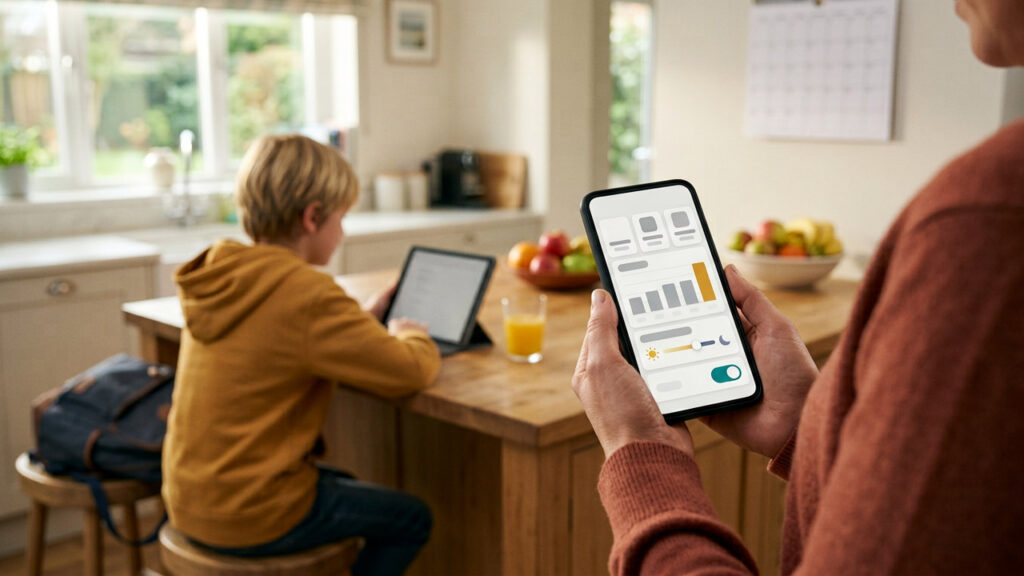
Handing a smartphone to a child opens an entire world of instant communication, educational tools, and creative expression, yet it also exposes young minds to algorithmic addiction and unfiltered online risks. Learning how to Use software to control your child’s phone gives modern parents a structured, stress-free framework to enforce healthy screen boundaries, block inappropriate websites, and verify physical safety in real time.
Instead of fighting exhausting nightly battles to confiscate devices at the dinner table or bedtime, automated digital guardrails establish predictable routines that kids can understand and respect. Understanding how built-in operating system tools compare against advanced third-party parental suites empowers families to build lifelong digital literacy without sacrificing trust.
Why Modern Parents Use software to control your child’s phone for Healthy Screen Habits
In family cybersecurity and digital wellness, the decision to Use software to control your child’s phone involves deploying mobile device management profiles, DNS content filters, and application usage timers that link a child’s handset to a parent’s administrative dashboard. These systems allow caregivers to approve app downloads remotely, enforce scheduled device downtime during school and sleeping hours, and monitor location safety across iOS and Android ecosystems.
Parents increasingly choose to Use software to control your child’s phone because commercial social media and gaming platforms are engineered by behavioral psychologists to maximize infinite scrolling. Expecting a ten-year-old or fourteen-year-old with a still-developing prefrontal cortex to resist variable-reward notification loops through willpower alone is biologically unrealistic.
Protecting Kids From Cyberbullying and Predators When You Use software to control your child’s phone
Unmonitored messaging platforms, multiplayer gaming chats, and ephemeral social feeds regularly expose minors to anonymous strangers, explicit material, and peer harassment. When you Use software to control your child’s phone, automated safety layers block access to high-risk anonymous chatrooms and filter out adult web domains before a browser page ever finishes loading. Proactive filtering prevents accidental exposure caused by innocent spelling mistakes or misleading video links.
Furthermore, modern parental protection suites incorporate optical character recognition and natural language processing to scan incoming and outgoing messages for warning signs of grooming, self-harm ideation, or severe cyberbullying. Rather than forcing parents to read every single innocent joke between school friends, families who Use software to control your child’s phone receive targeted alerts only when high-risk keywords or distress signals appear.
Balancing Sleep Hygiene and Academic Focus When You Use software to control your child’s phone
Pediatric sleep researchers consistently warn that blue light exposure and late-night group chat notifications suppress melatonin production and fragment adolescent REM sleep cycles. When families Use software to control your child’s phone, automated bedtime curfews lock down entertainment apps, games, and web browsers at a set evening hour while keeping emergency voice calling to parents active. Removing the temptation to check midnight notifications improves mood regulation and morning alertness immediately.
Classroom and homework distractions present an equally urgent challenge during the academic week. By choosing to Use software to control your child’s phone with custom school-day schedules, parents can disable short-form video feeds and mobile games between 8:00 AM and 3:30 PM while leaving calculators, educational portals, and family messaging completely accessible.
Core Technical Features Available When You Use software to control your child’s phone
Modern parental management applications rely on a combination of native operating system APIs, local Virtual Private Network (VPN) loopback filters, and Mobile Device Management (MDM) certificates to enforce rules reliably. Understanding the core technical toolkit available when you Use software to control your child’s phone helps you activate the exact features your child’s maturity level requires.
Daily Screen Time Schedules and Instant App Blocking to Use software to control your child’s phone
Granular time management goes far beyond a simple on-off switch for the entire handset. When you Use software to control your child’s phone, you can assign specific daily time allowances to individual app categories—such as allowing forty-five minutes per day for social media and sixty minutes for gaming, while leaving music streaming and reading apps unrestricted. Once the daily countdown reaches zero, the software automatically grays out the restricted app icons until the next morning.
Parents also gain an instant “Pause Device” or “Family Time” override button inside their parent controller app. If homework is unfinished or family dinner is starting, you can Use software to control your child’s phone with a single tap from your own handset to temporarily lock non-essential apps without saying a word or raising your voice.
Real-Time GPS Geofencing and Web Content Filtering When You Use software to control your child’s phone
Physical peace of mind is one of the primary reasons families introduce a first smartphone during middle school transitions. When you Use software to control your child’s phone with active GPS telemetry, you can define virtual perimeter boundaries—known as geofences—around school campuses, soccer fields, and friends’ houses. The system sends an automatic push notification to the parent’s phone the moment the child arrives at school safely or departs for home.
Web content filtering operates continuously in the background to categorize millions of websites across thirty or more thematic groups such as violence, gambling, pornography, and proxy avoidance. Parents who Use software to control your child’s phone can enforce SafeSearch across Google, Bing, and YouTube automatically, ensuring that even incognito browser tabs obey family safety rules.
Configuring Cross-Platform iOS and Android Rules to Use software to control your child’s phone
A common household challenge arises when parents carry iPhones while purchasing a budget-friendly Android device for their child, or vice versa. While native manufacturer tools struggle to bridge competing ecosystems effortlessly, families who Use software to control your child’s phone through dedicated cross-platform software can manage an Android handset directly from an iOS parent dashboard. Cross-platform compatibility ensures unified rule enforcement regardless of hardware brand.
On Apple devices, configuring software to Use software to control your child’s phone often utilizes Apple’s Screen Time Family Sharing framework paired with an encrypted MDM configuration profile. On Android devices, the child’s app utilizes Accessibility Services and Device Administrator permissions to prevent unauthorized app deletions and monitor web traffic across third-party browsers.
Deploying AI Social Media and Text Alert Scanners When You Use software to control your child’s phone
Teenagers rarely communicate solely through standard SMS text messages; their social lives unfold inside Instagram DMs, Snapchat, Discord, TikTok, WhatsApp, and YouTube comments. Standard time-limit tools can restrict how long a teen uses Discord, but they remain blind to what happens inside the app during those thirty minutes. To close this gap, parents Use software to control your child’s phone that integrates AI-powered content monitoring across thirty-plus social platforms.
Instead of handing parents a transcript of every private conversation, AI monitoring engines analyze text strings, emojis, and attached image metadata locally or via encrypted cloud APIs. When you Use software to control your child’s phone with intelligent sentiment detection, you receive an immediate snippet alert if your child receives a predatory message, a violent threat, or substance-abuse solicitation, allowing timely and supportive parental intervention.
Comparing Built-In OS Tools vs Third-Party Apps to Use software to control your child’s phone
Parents evaluating how to Use software to control your child’s phone typically choose between three software categories: free built-in operating system controls, comprehensive all-in-one time and web managers, and specialized AI social-media safety monitors. Each platform excels at different age stages and device combinations. The comparison table below benchmarks the top five solutions used to Use software to control your child’s phone.
| Software Solution | Supported Ecosystems | Core Strengths When You Use software to control your child’s phone | Social Media & Text Alert Depth | Typical Pricing Structure |
|---|---|---|---|---|
| Apple Screen Time (Family Sharing) | iOS / iPadOS / macOS (Works best iPhone-to-iPhone) | Deep OS integration, app download approvals, downtime schedules, communication safety | Blurs sensitive photos in iMessage; no 3rd-party social chat scanning | 100% Free (Built into Apple iOS) |
| Google Family Link | Android / ChromeOS (Parent app available on iOS & Android) | Free app blocking, daily time limits, Play Store approvals, live GPS battery/location view | Basic YouTube Kids/SafeSearch filtering; no DM or text content alerts | 100% Free (Built into Android) |
| Qustodio | iOS, Android, Windows, Mac, Chromebook, Kindle | Granular app time rules, robust web filtering, call/SMS logs (Android), panic button | Monitors YouTube views & social timer; limited deep chat text scanning | Free Basic tier / $55 to $100 per year |
| Bark | iOS, Android, Amazon Fire, Chromebook (+ Bark Home router) | Industry-leading AI scanning of 30+ social apps, texts, and photos for bullying/predators | Exceptional AI context alerts; includes screen time & web filtering | $5 to $14 per month (Free 7-day trial) |
| Net Nanny / Norton Family | iOS, Android, Windows, macOS | Real-time dynamic web page content analysis, instant screen lock, detailed search logs | Strong web & YouTube monitoring; lighter on encrypted social DMs | $50 to $90 per year |
Reviewing these capabilities shows why many families adopt a layered approach as they Use software to control your child’s phone. Pairing free built-in OS purchase approvals (Apple Family Sharing or Google Family Link) with a specialized third-party safety monitor like Bark or Qustodio delivers both rock-solid hardware locking and intelligent social media protection.
8 Best Proven Steps to Use software to control your child’s phone Without Breaking Trust
Installing parental controls secretly like spyware almost always backfires once a child discovers the hidden app, sparking resentment and secret rebellion. By contrast, positioning the technology as a collaborative training wheel builds mutual respect. Follow these eight proven steps to Use software to control your child’s phone effectively while keeping parent-child communication open and positive.
- Draft a Collaborative Family Smartphone Contract Before Activation: Sit down together before handing over the device and agree in writing on daily screen budgets, charging locations, and why you Use software to control your child’s phone as a safety seatbelt rather than a punishment.
- Set Up Official Child Accounts Inside Apple Family or Google Family First: Never sign a child’s phone into a parent’s personal Apple ID or Google account; create a dedicated minor account with their real birth date so you can Use software to control your child’s phone with mandatory App Store and Play Store purchase approvals.
- Establish an Overnight Charging Station Outside the Bedroom: Pair digital bedtime curfews with a physical house rule where all youth devices charge in the kitchen or parents’ room overnight, reinforcing the sleep boundaries set when you Use software to control your child’s phone.
- Configure Always-Allowed Whitelists for Emergency and School Apps: Ensure that voice calling to parents, emergency services, calculator tools, and school verification apps are marked as “Always Allowed” when you Use software to control your child’s phone so safety is never compromised during downtime.
- Enable Age-Appropriate Web Filtering and SafeSearch Enforcement: Turn on DNS-level adult content blocking and force SafeSearch across web browsers and YouTube the first day you Use software to control your child’s phone to prevent accidental exposure to graphic material.
- Use Exception-Based AI Alerts Instead of Reading Private Diaries: As children enter their pre-teen and teen years, Use software to control your child’s phone that scans for dangerous keywords (bullying, predators, self-harm) rather than micromanaging harmless daily banter with classmates.
- Protect Administrative Passcodes and Disable Biometric Overrides: Use a dedicated four-to-six-digit Screen Time or parental pin that does not match your home alarm, birthday, or personal phone unlock code when you Use software to control your child’s phone, and never watch your passcode in front of a mirror or shoulder-surfer.
- Schedule Quarterly Earned-Autonomy Reviews to Reward Responsibility: Review usage reports together every three months and gradually expand app time limits or curfew hours as your child demonstrates consistent homework completion and respectful offline behavior while you Use software to control your child’s phone.
Following this eight-step roadmap transforms digital supervision from an adversarial policing effort into a clear developmental milestone. Children who know the exact rules upfront—and know how they can earn greater freedom over time—cooperate far more willingly when parents Use software to control your child’s phone.
Early Warning Signs That You Need to Use software to control your child’s phone Immediately
Even responsible kids can quickly get overwhelmed by algorithmic feeds, toxic group chats, or late-night gaming loops once they receive a smartphone. Recognizing the early behavioral and digital symptoms of unhealthy device attachment allows parents to intervene supportively before academic or emotional harm escalates. Watch for these seven warning signs that indicate you need to Use software to control your child’s phone right away.
- Sudden Hostility, Anxiety, or Meltdowns When Asked to Put the Phone Down: Intense emotional dysregulation at transition times signals dopamine withdrawal from fast-paced short-form video feeds or competitive games.
- Chronic Morning Exhaustion and Falling Grades: Glowing screens under bedsheets at 1:00 AM or constant homework interruptions cause daytime fatigue and missing school assignments.
- Frantically Hiding or Tilting the Screen When a Parent Walks Into the Room: Secretive body language, rapid app switching, or clearing browser histories daily often points to inappropriate content or uncomfortable online interactions.
- Unexplained App Charges or Unknown Gaming Friends: Discovering surprise micro-transactions on family credit cards or hearing your child reference older online acquaintances they have never met in person requires immediate action to Use software to control your child’s phone.
- Withdrawal From Offline Hobbies, Sports, and In-Person Friendships: Losing interest in outdoor play, family board games, or athletic teams in favor of isolated bedroom scrolling indicates unhealthy digital dependency.
- Battery Drain Spikes in the Middle of the School Day: Checking device battery diagnostics and seeing four hours of social media or gaming activity between 9:00 AM and 2:00 PM confirms classroom distraction.
- Receiving Texts or Calls From Unsaved Numbers Late at Night: Frequent pings from unfamiliar area codes or encrypted group chats after bedtime highlight the urgent need to Use software to control your child’s phone with communication limits.
When two or more of these behavioral shifts appear, calmly introducing structured digital boundaries helps reset your child’s nervous system. Framing the decision to Use software to control your child’s phone around protecting their sleep and mental peace reduces defensiveness.
How to Prevent Tech-Savvy Kids From Bypassing Rules When You Use software to control your child’s phone
Modern children grow up surrounded by YouTube and TikTok tutorials demonstrating clever technical loopholes to defeat parental restrictions. If a configuration leaves system settings unlocked, a curious twelve-year-old can bypass basic timers in minutes. The table below outlines the six most common workarounds kids use and the exact technical countermeasures parents should enable when they Use software to control your child’s phone.
| Common Kid Bypass Trick | How the Loophole Works | Exact Countermeasure When You Use software to control your child’s phone |
|---|---|---|
| Changing System Clock & Time Zone | Shifting the phone’s clock back 5 hours to Honolulu or Tokyo to trick bedtime curfews | Lock “Date & Time” to “Set Automatically” inside Location/Account Restrictions |
| Installing a Free VPN App | Using a third-party VPN tunnel to bypass home Wi-Fi filters and DNS web blockers | Block App Store downloads and disallow new VPN configuration profile installation |
| Deleting and Reinstalling Apps | Uninstalling an app and re-downloading it from the cloud to reset daily usage timers | Set “Deleting Apps” to “Don’t Allow” inside Content & Privacy Restrictions |
| Using Embedded In-App Browsers | Clicking web links inside settings, Gmail, or notes after Safari or Chrome is blocked | Use a DNS/VPN-based parental filter that inspects all system-wide HTTP/HTTPS traffic |
| Creating Secondary Android Guest Users | Switching to the Android “Guest” profile where parental apps are not active | Disable “Add Users from Lock Screen” and turn off Multi-User/Guest mode in Admin settings |
| Screen-Recording the Parent Passcode | Turning on iOS/Android screen recording before handing the phone to a parent to unlock | Always approve time extensions remotely from your own parent phone rather than typing the PIN on theirs |
Locking Down VPNs, Time-Zone Tricks, and Guest Profiles to Use software to control your child’s phone
Two of the oldest tricks in the schoolyard playbook are manually rolling back the phone’s internal clock to stay past bedtime and downloading a free proxy VPN to bypass content filters. When you Use software to control your child’s phone on iOS, navigate to Screen Time, open Content & Privacy Restrictions, enable Location Services locks, and set “Set Automatically” under Date & Time to locked. On Android devices managed via Family Link, toggle off the child’s ability to modify date, time, and developer options from your parent dashboard.
Preventing rogue VPN installations is equally essential because many commercial parental control suites rely on their own local VPN profile to filter malicious websites. If a child installs a second VPN app, it overwrites the parental filter. Whenever you Use software to control your child’s phone, lock profile installation permissions and configure your home Wi-Fi router to block unauthorized outbound VPN ports.
Securing App Store Downloads and Factory Reset Permissions When You Use software to control your child’s phone
The fastest way a teenager can disable third-party monitoring is by force-stopping the companion app, revoking Accessibility permissions, or executing a full hardware factory reset. When you Use software to control your child’s phone on Android, activate the parental app’s “Device Administrator” protection and lock the Google Settings app itself behind the parental PIN so permissions cannot be toggled off. In Family Link, explicitly disable “Add/Remove Users” and “Factory Reset” from the device controls menu.
Above all, guard your parental administrative PIN by never typing it directly onto your child’s screen. Kids routinely use subtle smudges on the glass or active screen-recording widgets to steal passcodes. Always Use software to control your child’s phone by granting bonus time requests remotely from the parent app on your own secured device.
Pros and Cons of Deciding to Use software to control your child’s phone
Before deploying technical restrictions across your household devices, parents benefit from weighing what automated software solves effortlessly against what still requires active human parenting. No piece of software is a complete substitute for engaged family mentorship. Below are the primary pros and cons when you decide to Use software to control your child’s phone.
Pros When You Use software to control your child’s phone:
- Eliminates daily arguments and parental nagging by outsourcing bedtime shutoffs and daily gaming limits to automated, neutral schedules.
- Blocks accidental or intentional access to pornography, gambling, self-harm forums, and malicious phishing domains across browsers.
- Provides instant GPS location verification, geofence arrival alerts, and SOS panic buttons for kids commuting to school or activities independently.
- Detects early warning signs of cyberbullying, predatory grooming, or emotional distress across social media and text messages using AI alerts.
- Gives parents detailed weekly screen-time analytics showing exactly which apps consume the most attention so family rules remain data-driven.
Cons and Practical Limitations:
- Apple’s strict iOS sandboxing prevents third-party apps from directly reading standard iMessage texts over the air without periodically backing up the child’s iPhone to a home Windows or Mac computer over Wi-Fi.
- Overly rigid surveillance without age-appropriate explanation can cause older teenagers to hide secondary burner phones or use friends’ accounts at school.
- Full-featured third-party suites that include AI social media monitoring and cross-platform web filtering require an annual subscription investment of $50 to $140.
- Software filters can only govern the child’s personal device and cannot control what classmates show them physically on another screen at the bus stop.
Recognizing these boundaries helps parents combine technical safeguards with critical-thinking conversations. When you Use software to control your child’s phone as a supportive guardrail while teaching kids how to handle uncomfortable peer moments in person, both technical and emotional resilience grow together.
Age-Appropriate Governance Roadmap to Use software to control your child’s phone From Age 8 to 17
A seventeen-year-old preparing for college should not be governed by the exact same locked-down whitelist as an eight-year-old receiving their first tablet or basic phone. The goal when you Use software to control your child’s phone is to scaffold self-regulation gradually over a decade of development. The table below outlines an age-appropriate governance roadmap from late elementary school through late high school.
| Child Age Stage | Recommended Software Setup | Screen Time & Bedtime Rules | Social Media & Web Governance | Privacy & Trust Balance |
|---|---|---|---|---|
| Ages 8 to 10 (Starter Stage) | Native OS Controls (Screen Time / Family Link) or Pinwheel/Gabb OS | 45–60 mins/day; phone docks in kitchen by 7:30 PM; zero bedroom use | Strict website whitelist only; zero social media; parent-approved contacts only | High direct supervision; co-viewing apps and games together |
| Ages 11 to 13 (Middle School) | Native OS + Qustodio or Bark for web & text safety | 1 to 1.5 hours/day on weekdays; school-hours lock; 8:30 PM curfew | Full adult/violence web filter; Ask-to-Buy on all apps; AI text/chat scanning | Transparent automated rules; explain why AI safety alerts are active |
| Ages 14 to 15 (Early High School) | Bark or Qustodio + OS Purchase & Downtime Locks | 1.5 to 2 hours recreational apps; 9:30–10:00 PM bedtime downtime | First supervised social apps with AI bullying/predator alerts & SafeSearch | Shift from reading logs to exception-only safety alerts & weekly reviews |
| Ages 16 to 17 (Pre-College Autonomy) | Native Screen Time Self-Tracking + Bark Severe Alerts + Life360 GPS | Self-managed daily app budgets with 11:00 PM sleep focus mode | Adult/malware DNS filter active; focus on safe driving & location sharing | High autonomy; monthly collaborative check-in on digital well-being |
Transitioning From Strict App Whitelisting to Guided Autonomy as You Use software to control your child’s phone
During the elementary and early middle school years (ages eight to twelve), children benefit most from a closed-garden approach. When you first Use software to control your child’s phone at this stage, communication should be restricted to a pre-approved contact list of family members and trusted friends, browser access should remain heavily filtered or disabled, and every single app download must require remote parental sign-off. Keeping the digital environment small allows young children to practice basic texting etiquette and device care safely.
As adolescents progress into high school (ages fourteen to十七), gradually loosening daily app timers while keeping severe-risk AI safety scanners and late-night sleep locks in place teaches practical time management. If a fifteen-year-old manages their homework grades and sleep schedule responsibly for a full semester while you Use software to control your child’s phone, rewarding them with an extra thirty minutes of weekend screen time or a later Friday curfew reinforces intrinsic self-control before they leave home at eighteen.
Conducting Monthly Family Digital Check-Ins Alongside How You Use software to control your child’s phone
The most effective digital parenting happens when data reports spark curiosity rather than lectures. Once a month, open the weekly usage dashboard generated when you Use software to control your child’s phone and look at the trends side by side with your child—and even share your own adult screen-time summary to model humility. Ask open-ended questions such as which apps made them feel creative and connected that month versus which apps left them feeling drained or irritable.
Using the dashboard from how you Use software to control your child’s phone as a shared coaching mirror teaches kids to recognize their own digital triggers. When children learn to audit their own screen habits alongside supportive parents, the software fulfills its highest purpose: raising thoughtful, self-regulated young adults.
FAQ’s
Can I Use software to control your child’s phone if I have an iPhone and my child has an Android?
Yes, you can easily Use software to control your child’s phone across different operating systems by installing Google Family Link (which offers a free iPhone parent app to manage an Android child phone) or using cross-platform third-party apps like Qustodio, Bark, or Norton Family.
What is the best free way to Use software to control your child’s phone?
The best completely free way to Use software to control your child’s phone is Apple Screen Time with Family Sharing for iPhones and Google Family Link for Android phones, both of which provide free remote app blocking, daily time limits, bedtime schedules, and app store purchase approvals.
Can I monitor my child’s social media and text messages without reading every private chat?
Yes, when you Use software to control your child’s phone with an AI-driven platform like Bark, the software scans texts, photos, and 30+ social media apps in the background and only sends parents an alert when it detects cyberbullying, predators, depression, or explicit content.
How do I stop my child from deleting or bypassing the parental control app?
To prevent bypassing when you Use software to control your child’s phone, set up a minor account with “Deleting Apps” and automatic “Date & Time” locked behind a private parent PIN, block unauthorized VPN installs, and always grant time extensions remotely from your own phone.
Will my child still be able to call me in an emergency when the phone is locked for bedtime?
Yes, every reputable platform used to Use software to control your child’s phone includes an “Always Allowed” whitelist feature that keeps voice calls and texts to parents and emergency 911 services 100% active even when all games, browsers, and social apps are locked.
At what age should parents start and stop using parental control software on a child’s phone?
Child development experts recommend that parents Use software to control your child’s phone starting the very first day a child receives a device (typically between ages 8 and 12) and gradually transition from strict app blocks to collaborative safety alerts between ages 15 and 17.
Conclusion
Giving your child a smartphone does not mean surrendering their attention, sleep, and safety to tech algorithms. When you proactively Use software to control your child’s phone, you establish clear, predictable digital boundaries that protect young users from inappropriate content, late-night sleep disruption, and online threats while preserving peaceful family routines.
Whether you start with free native tools like Apple Screen Time and Google Family Link or upgrade to comprehensive AI safety suites like Qustodio and Bark, the secret to lasting success lies in combining firm technical guardrails with open, empathetic family communication. Implement these eight proven steps today, and you can Use software to control your child’s phone to guide your child confidently toward responsible, independent digital citizenship.