
A Game Booster is software or a built in system feature designed to optimize device resources while a game is running. Depending on the operating system and...
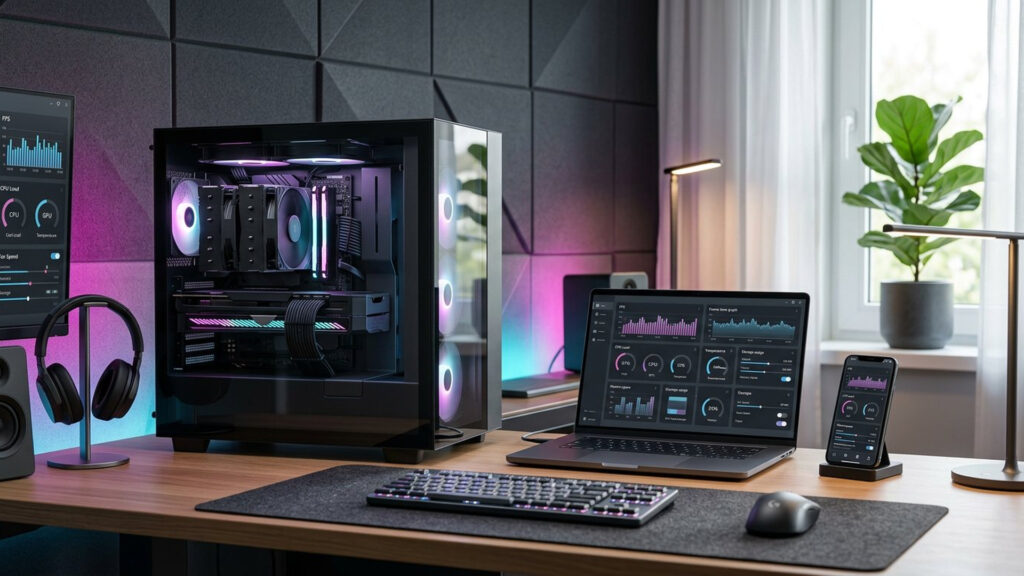
A Game Booster is software or a built in system feature designed to optimize device resources while a game is running. Depending on the operating system and application, it may prioritize gaming processes, limit background activity, adjust power settings, manage notifications, or provide performance monitoring tools. These features can improve consistency on some PCs and mobile devices, particularly when background applications compete for limited resources, but they cannot transform underpowered hardware into a high end gaming system. Understanding what game optimization actually changes makes it easier to improve performance without falling for unrealistic claims.
What Is a Game Booster?
A game booster is an optimization tool designed to help a computer, smartphone, or tablet allocate available resources more effectively during gameplay.
The exact functions differ between products. Some tools simply activate operating system gaming settings, while others manage background processes, performance profiles, memory use, notifications, network related settings, or device temperature policies.
Modern operating systems and smartphones may already include gaming optimization functionality, which means installing third party software is not always necessary.
A reputable gaming optimizer should complement normal system management rather than make unsupported promises about dramatically multiplying hardware performance.
How Does a Game Booster Work?
Games compete with the operating system and other applications for CPU time, memory, graphics resources, storage access, and network bandwidth.
Optimization software attempts to reduce unnecessary competition.
For example, temporarily limiting a resource intensive background application could free processor or memory capacity that the game can use. Preventing nonessential notifications can also reduce interruptions even when it does not directly increase frame rates.
Game Booster Resource Optimization
Resource optimization typically concentrates on CPU, RAM, GPU related settings, storage activity, and background tasks.
What a Game Booster Cannot Do
Optimization software cannot physically add faster processor cores, increase the capabilities of an existing GPU, turn insufficient RAM into physical memory, improve a slow display panel, or fix every network problem.
This distinction is important because exaggerated optimization claims are common.
9 Powerful Ways a Game Booster Can Improve Gaming
Gaming optimizers can be useful when they target genuine bottlenecks. The actual improvement depends on the device, game, operating system, and processes already running.
1. Game Booster Tools Can Manage Background Processes
Browsers, cloud synchronization utilities, communication applications, launchers, update services, and other programs can remain active during gameplay.
Some consume very little processing power, while others periodically create meaningful CPU, RAM, storage, or network activity.
A gaming optimization profile may reduce unnecessary background workloads while the game is active.
Users should avoid indiscriminately terminating system processes. Essential operating system services, security applications, hardware utilities, and accessibility tools may be needed for normal or safe operation.
2. They Can Help Prioritize Gaming Resources
Some optimization tools change how the operating system treats a game process or switch the computer into an existing gaming mode.
This can help maintain consistent resource allocation, especially on computers that normally run numerous applications simultaneously.
Priority adjustments do not create additional CPU performance. Setting excessively aggressive process priorities can also make other necessary processes less responsive.
Effective optimization is about allocating existing resources appropriately.
3. Game Booster Software May Reduce Interruptions
Gaming performance involves more than frames per second.
A notification, scheduled task, software update, or application launching unexpectedly can interrupt a session at an inconvenient moment.
Game modes may suppress selected notifications or limit some background behavior while gaming.
This is particularly useful for competitive gameplay, streaming, and full screen sessions where interruptions can affect the experience.
4. Performance Profiles Can Optimize Power Settings
Processors and graphics hardware dynamically adjust their operating behavior based on workload, temperature, and power policies.
Performance oriented modes may allow compatible hardware to sustain higher performance when conditions permit.
This is especially relevant to laptops, where balanced and battery saving profiles can intentionally reduce performance to conserve energy.
Game Booster Power Modes on Laptops
A laptop gaming profile may prioritize performance when connected to a suitable charger.
Battery Life Versus Gaming Performance
Higher performance can increase electricity consumption, heat output, and fan activity. On portable devices, it can also shorten battery runtime.
Gaming laptops typically perform best under the manufacturer’s recommended power configuration.
5. Game Booster Features Can Support FPS Stability
Frames per second, commonly abbreviated FPS, measures how many frames a system renders each second.
Reducing competing workloads can sometimes improve frame time consistency or reduce occasional slowdowns.
The largest limitation remains hardware performance. If a game’s graphics workload already pushes the GPU to its limit, closing lightweight background applications is unlikely to create a dramatic FPS increase.
Meaningful improvements may instead require changing game settings, enabling appropriate upscaling technology, reducing resolution, or upgrading hardware.
6. Some Tools Help Optimize Network Activity
Online games depend on network conditions as well as computer performance.
Background downloads, cloud backups, operating system updates, video streaming, and other network intensive activity can compete for bandwidth.
An optimizer that limits nonessential traffic during a gaming session may improve consistency when local bandwidth congestion is the problem.
It cannot fix every source of latency.
Physical distance from the game server, internet service provider routing, server load, wireless interference, and upstream network problems are outside the control of ordinary game boosting software.
7. Mobile Game Booster Modes Can Manage Gaming Sessions
Many Android phones include manufacturer supplied gaming modes.
Depending on the device, these can offer notification control, screen recording, performance presets, touch related options, monitoring, or game library management.
Mobile performance is strongly affected by power and temperature limits.
When a smartphone becomes sufficiently hot, its hardware may reduce operating performance to protect the device. This behavior is generally called thermal throttling.
Optimization software cannot safely bypass fundamental thermal constraints indefinitely.
8. Monitoring Makes Performance Problems Easier to Diagnose
Some game boosting suites display FPS, CPU load, GPU utilization, memory consumption, temperatures, and other metrics.
Monitoring is useful because different performance problems require different solutions.
High GPU usage might indicate a graphics bottleneck. Very high memory consumption could indicate insufficient available RAM. Excessive temperatures may point toward cooling or airflow problems.
Diagnosis is more effective than applying random tweaks.
9. A Game Booster Can Centralize Useful Gaming Settings
One practical advantage is convenience.
Instead of changing power, notification, monitoring, and application settings manually before every game, a gaming mode can apply a predefined profile and restore normal settings afterward.
For many users, automation is more useful than claims of raw performance improvements.
A well designed optimizer should also make its changes understandable and reversible.
Game Booster for PC Gaming
Windows gaming PCs range from entry level laptops to powerful desktops, so optimization requirements differ considerably.
Before installing additional booster applications, users should examine the gaming features already provided by Windows, the graphics driver software, and the hardware manufacturer.
Keeping the operating system and appropriate drivers maintained can resolve compatibility and performance problems that a generic optimizer cannot.
Game Booster Settings for Windows
Useful Windows gaming optimization can involve game related system settings, appropriate power configuration, graphics preferences, startup application management, and notification controls.
Avoid blindly applying registry modifications or disabling services based on generic optimization guides.
Windows services can have dependencies that are not immediately obvious, and disabling the wrong component can create stability, security, networking, or update problems.
GPU Settings for Game Booster Performance
NVIDIA, AMD, and Intel provide graphics software with settings that can influence individual games or global graphics behavior.
Keep Graphics Drivers Appropriate and Stable
Newer drivers can contain game optimizations, compatibility fixes, and security updates, but the newest release is not guaranteed to perform perfectly on every configuration.
If a new driver causes a reproducible problem, check the GPU manufacturer’s documentation and supported rollback or troubleshooting options.
Game Booster for Android Devices
Android manufacturers frequently provide their own gaming environments. Names and available functions vary by brand and software version.
A mobile gaming mode may prioritize a game, suppress notifications, provide screen recording controls, or offer a performance setting.
Third party boosters can also be found in app stores, but users should evaluate them carefully.
An application that demands broad permissions without a clear technical reason may introduce unnecessary privacy or security risks.
Does a Game Booster Increase Android FPS?
Sometimes optimization can improve consistency when competing applications or restrictive power settings are creating a bottleneck.
However, graphics performance remains constrained by the phone’s chipset, GPU, cooling system, game optimization, display, and power budget.
Apps advertising impossible hardware transformations or extreme FPS gains should be treated skeptically.
RAM Cleaning on Android
Android manages memory automatically and intentionally keeps applications cached where appropriate.
Why Constant RAM Clearing May Not Improve Gaming
Free RAM is not automatically evidence of a faster phone. Repeatedly forcing cached applications out of memory can make them reload later and may provide little meaningful performance benefit.
Targeting a genuinely problematic background application is different from continuously clearing memory without a specific reason.
Game Booster for iPhone and iPad
Apple tightly controls application access to iOS and iPadOS system resources. Third party applications therefore cannot manipulate low level system behavior in the same manner as some desktop utilities claim to do.
Gaming performance depends on the device’s hardware, operating system, game design, thermal conditions, power state, and available storage among other factors.
Users should be particularly skeptical of apps claiming they can radically overclock an iPhone, independently upgrade its RAM, or unlock impossible hardware performance.
System level gaming features available on supported versions of Apple’s operating systems are generally more relevant than generic third party boosting claims.
Game Booster and FPS Optimization
FPS is one of the most visible gaming performance metrics, but it should not be considered in isolation.
Frame time consistency matters because an inconsistent series of rapidly and slowly delivered frames can feel less smooth than a relatively stable frame rate.
Display refresh rate, input latency, synchronization technology, and game engine behavior can also influence perceived responsiveness.
How to Improve FPS Alongside a Game Booster
If software optimization alone is insufficient, adjust settings that directly affect rendering workload.
Potential changes include:
• Lowering output resolution where acceptable
• Reducing demanding shadow settings
• Adjusting ray tracing options
• Lowering unnecessary anti aliasing settings
• Reducing volumetric effects
• Using supported upscaling technologies appropriately
• Selecting realistic texture settings for available graphics memory
• Closing genuine resource heavy background applications
Settings should be changed systematically. Adjusting one or two variables at a time makes it easier to identify what actually improved performance.
Can a Game Booster Reduce Lag?
The word lag is frequently used for several unrelated problems.
Network latency is the travel time associated with sending information between systems. Low FPS is a rendering performance problem. Stuttering can originate from CPU, GPU, memory, storage, shader compilation, drivers, or game engine behavior.
A booster can only help when it addresses the underlying cause.
Game Booster and Network Latency
When other local applications saturate an internet connection, limiting their traffic can potentially improve gaming network performance.
However, no local optimization tool can repeal physical network limitations.
Ping and Online Gaming
Ping is commonly used as an indicator of network latency to a particular endpoint.
Why a Game Booster Cannot Guarantee Lower Ping
The route between your device and the game server crosses infrastructure controlled by multiple parties. Server distance, ISP routing, congestion, WiFi conditions, and game infrastructure can therefore affect latency independently of booster software.
Game Booster and PC Hardware
Before looking for software fixes, identify whether the system meets the game’s requirements.
A GPU bottleneck may be addressed by lowering graphics settings. A CPU limitation may require reducing CPU intensive game settings or background workloads. Insufficient RAM can create additional memory pressure.
Storage can matter as well. Modern games increasingly expect solid state storage, and some titles specify an SSD as part of their requirements.
No booster should be expected to replace hardware that falls substantially below a game’s stated minimum specifications.
Temperature and Gaming Performance
Heat directly affects modern computing devices because processors dynamically regulate performance within thermal and electrical limits.
A poorly cooled laptop or desktop can experience reduced sustained performance.
Keep vents unobstructed and maintain the computer according to manufacturer instructions. Dust accumulation can impair cooling in some systems.
Thermal Throttling and Game Booster Results
If a device is already thermal throttling, selecting a more aggressive performance profile may generate additional heat rather than solve the underlying limitation.
Cooling and operating conditions should be evaluated first.
Laptop Cooling During Gaming
Place laptops on stable surfaces that do not obstruct ventilation.
Avoid Unsafe Performance Modifications
Disabling thermal protections, applying unknown firmware, or using unsupported voltage modifications can create instability, data loss, hardware damage, or safety concerns. Use manufacturer supported tools and documented settings.
How to Choose a Safe Game Booster
The software should come from a trustworthy developer and clearly explain its functions.
Check the developer, distribution source, permissions, privacy policy, update history, and independent security reputation. Download software from official sources whenever possible.
Avoid optimization programs that require unnecessary administrator access or advertise unrealistic guarantees.
Be particularly cautious when software asks users to disable antivirus protection to install it. Although false positives occasionally occur, security warnings should be investigated rather than automatically bypassed.
Features Worth Looking For
Useful functionality can include:
• Gaming mode automation
• Background application management
• Performance monitoring
• Notification control
• Per game profiles
• Power profile integration
• Simple restoration of default settings
• Clear explanations of applied changes
A transparent tool is generally preferable to one that applies undocumented system modifications.
Free Game Booster Versus Paid Software
Free software can be sufficient for basic optimization because operating systems and hardware vendors already provide many relevant tools.
Paid applications may add automation, integrated monitoring, technical support, or specialized functionality.
Payment itself does not demonstrate effectiveness.
Before purchasing, determine whether the software offers functionality beyond tools already available through Windows, Android, iOS, GPU utilities, or the device manufacturer.
Independent benchmarks conducted on comparable hardware can be more informative than promotional claims.
Is Game Booster Software Safe?
Legitimate game optimization software can be safe, but the category also attracts misleading programs and potentially unwanted software.
Download from reputable sources and scan unfamiliar files using appropriate security tools.
Read installation screens carefully because some free applications may bundle additional software.
A booster that disables security functions, modifies critical system files without explanation, or demands excessive permissions should be approached with caution.
Common Game Booster Myths
One widespread myth is that clearing all RAM automatically increases gaming speed. Modern operating systems actively manage memory, and unused memory is not inherently better.
Another is that gaming optimization can substantially improve any internet connection. Network problems outside the local device remain outside the booster’s control.
Overclocking claims also deserve scrutiny. True hardware overclocking depends on compatible hardware, firmware, cooling, and voltage or power controls. An ordinary optimization application cannot safely make unsupported hardware infinitely faster.
Finally, optimization cannot guarantee a specific FPS. Gaming performance changes according to hardware, resolution, game engine, graphics settings, drivers, temperatures, and individual scenes.
How to Test Whether a Game Booster Works
Benchmark the system before making changes.
Choose a repeatable built in game benchmark where available, or test the same gameplay sequence under similar conditions. Record average FPS and, when possible, frame time statistics.
Then activate the optimization settings and repeat the test under comparable conditions.
This helps separate measurable improvement from placebo effects.
A difference that appears in one short run should not automatically be considered conclusive because normal performance variation can occur.
Frequently Asked Questions
What is a Game Booster?
A Game Booster is software or an operating system feature that optimizes selected resources and settings for gaming, often by managing background activity and performance profiles.
Does a Game Booster really increase FPS?
It can improve performance when background workloads or system settings are limiting a game, but results vary and software cannot exceed fundamental hardware capabilities.
Can a Game Booster reduce ping?
It may help if local background traffic is congesting the connection. It cannot guarantee lower ping caused by server distance, ISP routing, or external network congestion.
Is Game Booster safe for PC?
Reputable optimization tools from trusted developers can be safe. Avoid applications that demand unnecessary permissions, disable security features, or make unexplained system changes.
Does Android need a Game Booster?
Not necessarily. Many Android devices already include manufacturer gaming features, and Android manages CPU and memory resources automatically.
What is the best Game Booster?
There is no universal best option. Choose reputable software that offers transparent optimization, useful monitoring, reversible settings, and compatibility with your specific device.
Conclusion
A Game Booster can make gaming more consistent by managing background activity, performance profiles, notifications, and other available system resources. Its effectiveness depends on the underlying bottleneck, so dramatic FPS or latency improvements should never be assumed. Combining trusted gaming features with suitable graphics settings, current software, healthy cooling, and capable hardware provides a more reliable approach to gaming optimization. Testing changes with repeatable benchmarks is the best way to determine whether a booster genuinely improves your system.