
A free AI image editor uses artificial intelligence to automate or simplify photo editing tasks such as removing unwanted objects, replacing backgrounds, extending images, enhancing resolution, retouching...
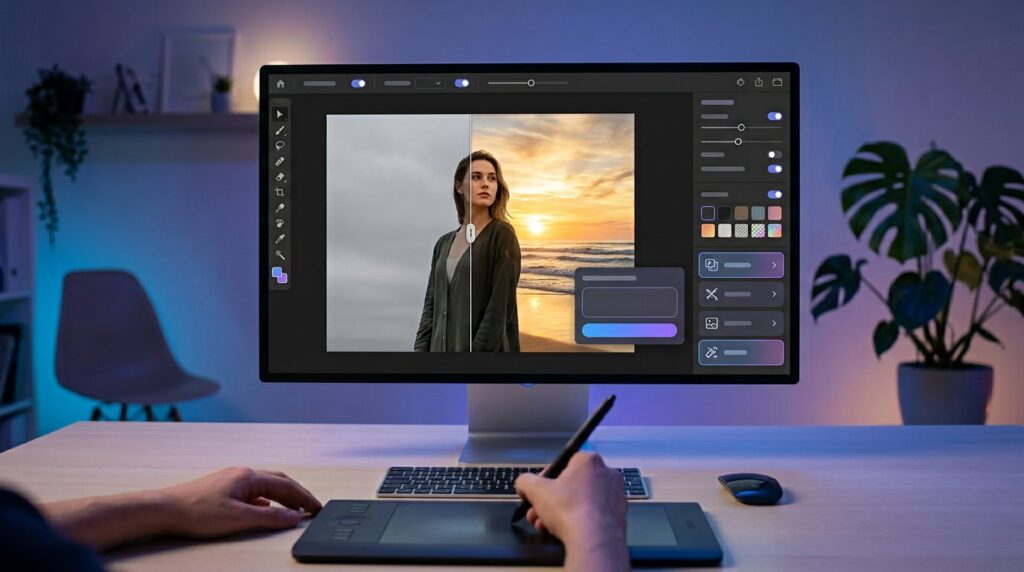
A free AI image editor uses artificial intelligence to automate or simplify photo editing tasks such as removing unwanted objects, replacing backgrounds, extending images, enhancing resolution, retouching selected areas, and generating new visual content from text instructions. Free tools can be useful for social media, ecommerce, presentations, personal photographs, marketing concepts, and creative experimentation, although free plans commonly impose limits on resolution, credits, exports, watermarks, storage, or commercial use. The right editor depends on the type of image you need to modify and how much control you require.
Traditional photo editing often requires manual selections, masks, cloning, layer adjustments, and significant experience. AI tools can perform parts of those workflows from a short written instruction or a rough selection.
They are not perfect. Generated details can be inaccurate, faces can change, product features can be altered, and apparently realistic edits can contain subtle visual errors. Important images therefore still need human review.
What Is a Free AI Image Editor?
A free AI image editor is an online, desktop, or mobile application that provides artificial intelligence assisted image editing without requiring payment for at least some level of access.
Free does not always mean unlimited.
A provider may offer:
• Limited daily generations
• Monthly AI credits
• Lower resolution exports
• Restricted file sizes
• Watermarked downloads
• Fewer editing features
• Slower processing queues
• Trial access
• Limited cloud storage
Because pricing models change frequently, verify the current free plan directly before committing to a workflow.
How Does a Free AI Image Editor Work?
AI editing systems analyze an uploaded image and use trained machine learning models to modify selected areas or generate new visual information.
Depending on the tool, the user may select an object manually or simply describe the requested change.
Generative Editing
Generative editing allows the system to synthesize pixels rather than merely adjusting existing ones.
For example, a user could select a chair and request:
“Replace the chair with a small wooden side table that matches the room lighting.”
The model attempts to create a new object consistent with the surrounding scene.
Computer Vision
Computer vision models can identify subjects, backgrounds, faces, objects, edges, depth, and other visual characteristics.
This makes automatic selections possible.
Text Prompt Editing
Some editors allow natural language commands such as:
“Remove the person in the background and reconstruct the pavement naturally.”
AI Reconstructs Rather Than Recovers Hidden Reality
When an object is removed, the model generally does not know exactly what was physically behind it when the photograph was captured.
It generates a plausible replacement based on available context.
That distinction matters for documentary, forensic, journalistic, medical, and other evidence-sensitive uses.
9 Powerful Free AI Image Editor Features
The most useful feature depends on what you need to accomplish.
1. AI Object Removal
Object removal is one of the most practical applications of generative editing.
A user selects an unwanted object, and the model generates surrounding pixels intended to fill the resulting gap.
Possible uses include removing:
• Background pedestrians
• Distracting signs
• Small unwanted objects
• Visual clutter
• Temporary blemishes in a scene
Results are generally easier when the background has a relatively predictable texture.
2. AI Background Removal
AI can automatically identify a foreground subject and separate it from the background.
This is useful for portraits, product images, social media graphics, and ecommerce listings.
Inspect Hair and Fine Edges
Automatic selection can struggle with:
• Curly hair
• Fur
• Transparent materials
• Glass
• Motion blur
• Fine fabric
• Similar foreground and background colors
Zoom in before exporting.
3. Background Replacement
After separating the subject, AI can generate or insert another environment.
For example, a product photographed on a kitchen counter could be placed against a neutral studio background.
Commercial users should ensure the generated setting does not misrepresent important product characteristics.
4. Generative Fill
Generative fill modifies a selected region according to a prompt.
It can add, replace, or reconstruct visual elements.
This capability makes advanced compositing accessible to people without extensive manual photo editing experience.
5. AI Image Expansion
Also known as outpainting or generative expand, this feature creates additional imagery beyond the original boundaries.
It can help transform a horizontal image into a vertical social post or provide extra negative space for graphic design.
6. AI Photo Enhancement
Enhancement tools can adjust sharpness, contrast, noise, exposure, and other characteristics automatically.
Results should be compared with the original because aggressive processing can create unnatural details.
7. AI Image Upscaling
Upscaling increases image dimensions while attempting to generate additional detail.
This can improve the appearance of some low-resolution images.
It cannot reliably recover every detail that was absent from the original.
8. Portrait Retouching
AI can assist with skin adjustments, eye corrections, lighting, and other portrait edits.
Subtle use generally preserves identity more effectively than extreme processing.
9. Text-Based Photo Editing
Modern multimodal tools increasingly allow users to explain a desired result conversationally.
This can make image editing accessible without memorizing complex software interfaces.
Picsart’s AI Agent is a good example of this approach: you describe the result you want, such as removing a background, resizing a photo for a vertical post, or creating a set of product visuals, and the agent handles the editing steps for you.
Free AI Image Editor for Background Removal
Background removal is one of the easiest AI editing functions to evaluate.
Product Photography
A clean cutout allows a product to be placed onto a white, transparent, colored, or lifestyle background.
For ecommerce, keep the product itself accurate.
Portrait Photography
AI can separate people from cluttered environments, making profile photos and presentation graphics easier to create.
Transparent Backgrounds
If you need transparency, check whether the free plan supports PNG or another format capable of retaining an alpha channel.
A JPG file does not support transparency in the same way.
Free AI Image Editor for Object Removal
Removing an object sounds simple, but result quality depends on the scene.
Simple Backgrounds
Objects against skies, walls, grass, sand, and other relatively repetitive backgrounds can be easier to remove convincingly.
Complex Backgrounds
Architectural lines, patterned floors, crowds, reflections, and text can make reconstruction more difficult.
Use Smaller Controlled Selections
When the first result looks unnatural, edit a smaller region instead of repeatedly regenerating a huge section.
This can give the model more surrounding context to preserve.
Free AI Image Editor for Generative Fill
Generative fill combines selection tools with text-to-image capabilities.
Add Objects
Users can select an empty region and describe an object to place there.
Include relevant information about scale, perspective, material, and lighting.
Replace Objects
Select the entire object and a small amount of surrounding context when appropriate.
Then describe the replacement clearly.
Repair Photographs
Generative fill can reconstruct damaged areas of an old photo.
However, generated details should not be represented as historically verified originals.
Free AI Image Editor for Ecommerce
AI editing can help small businesses create cleaner product visuals with fewer manual steps.
Remove Distracting Backgrounds
Products can be isolated and placed against consistent backgrounds.
This can create a more cohesive catalog.
Create Lifestyle Concepts
AI can generate environments around accurately preserved product imagery.
For example, a lamp can be composited into a living room scene.
Do Not Alter Material Product Features
AI can accidentally change:
• Product color
• Shape
• Size
• Labels
• Ports
• Buttons
• Packaging
• Included accessories
Customers should receive a product consistent with what advertising depicts.
Free AI Image Editor for Social Media
Social content often needs rapid resizing, cleanup, and variation.A GIF maker can also help create engaging visual content for social media.
Change Aspect Ratios
Generative expansion can adapt an image for vertical, square, and landscape formats.
Create Multiple Variations
A single source photo can become several campaign concepts through background, color, or environmental changes.
Keep Branding Consistent
Add exact logos and typography using reliable design tools rather than relying on generative AI to reproduce brand marks correctly.
Free AI Image Editor for Profile Pictures
AI can improve background consistency and basic presentation.
Keep the Face Accurate
Avoid extreme generative modifications when an image needs to identify a real person.
A professional profile photograph should still represent the individual accurately.
Professional Backgrounds
Neutral or softly blurred environments can reduce distractions without making the image unnecessarily artificial.
Free AI Image Editor for Old Photos
AI restoration can reduce scratches, noise, fading, and damage.
Restoration vs Reconstruction
Traditional restoration attempts to preserve or recover existing information.
Generative reconstruction can invent plausible missing information.
The distinction should be preserved for archival work.
Keep the Original File
Never overwrite the only copy of an important family or historical photograph.
Store an untouched original separately.
AI Image Upscaling
Upscaling models attempt to create a higher-resolution interpretation of a smaller image.
When Upscaling Works Well
It can be effective on:
• Illustrations
• Clean portraits
• Digital artwork
• Moderately compressed photographs
When It Can Fail
Tiny text, fine product details, facial identity, and scientific imagery can be altered or invented.
Always compare with the source.
Free AI Image Editor vs Traditional Photo Editor
AI editors and conventional software solve overlapping but different problems.
AI Advantages
Potential benefits include:
• Faster selections
• Prompt-based editing
• Automatic background removal
• Rapid concept generation
• Accessible object removal
• Easy image expansion
Traditional Editing Advantages
Conventional tools provide:
• Precise manual control
• Predictable layer workflows
• Exact typography
• Detailed color management
• Pixel-level corrections
• Better reproducibility for some professional tasks
Use Both Together
A practical workflow can use AI to generate or automate difficult elements and conventional editing for precision.
How to Use a Free AI Image Editor
Most services follow a relatively simple workflow.
Step 1: Choose a Suitable Image
Start with the highest-quality source available.
AI can help poor imagery, but a strong source generally gives the model more reliable information.
Step 2: Choose the Editing Tool
Select background removal, object removal, generative fill, enhancement, or another function.
Step 3: Select the Target Area
Mask only the region that needs modification where possible.
Step 4: Write a Clear Prompt
Describe what should change and what should remain untouched.
Step 5: Generate Several Versions
AI is probabilistic.
Several generations can produce noticeably different results.
Step 6: Inspect at Full Resolution
Check edges, faces, hands, text, reflections, products, architecture, and shadows.
Step 7: Export the Appropriate Format
Choose JPG, PNG, or another supported format according to the final use.
How to Write AI Image Editing Prompts
Good prompts focus on the transformation.
Describe What to Preserve
For example:
“Keep the person, face, clothing, pose, and camera angle unchanged.”
This signals that the edit should concentrate elsewhere.
Describe the New Element
Add specific properties such as material, color, scale, and position.
Match Existing Lighting
If the image uses soft daylight from the left, say so when requesting a replacement object.
Avoid Conflicting Instructions
A short, precise prompt often performs better than a long list of incompatible visual demands.
Best Free AI Image Editor Features to Compare
Different users prioritize different capabilities.
Look for:
• Object removal
• Background removal
• Generative fill
• Image expansion
• Upscaling
• Retouching
• Prompt editing
• Batch processing
• Export resolution
• File formats
• Commercial use terms
• Privacy settings
Evaluate the free tier specifically rather than assuming features advertised on the homepage are available without payment.
Understanding Free AI Credits
Many tools use credits to limit resource-intensive AI generation.
What Can Consume Credits?
Depending on the provider:
• Generative edits
• Image creation
• Upscaling
• Background generation
• High-resolution exports
Simple conventional adjustments may not consume AI credits.
Do Credits Expire?
Policies vary.
Check whether unused credits roll over, reset monthly, or expire.
Free AI Image Editor Without Watermarks
Some free tools allow unwatermarked exports, while others reserve them for paid users.
Read Export Restrictions
Before spending time editing, check:
• Watermark policy
• Maximum resolution
• Download count
• File type
• Commercial restrictions
This prevents discovering an important limitation after finishing the image.
Free AI Image Editor Privacy
Uploading an image sends potentially sensitive information to the provider.
Read the Privacy Policy
Determine:
• How uploads are stored
• How long files are retained
• Whether inputs may be used for model improvement
• Whether an opt-out is available
• How deletion works
• Who can access files
Sensitive Images
Avoid uploading confidential business documents, private customer information, identification documents, medical imagery, or other sensitive content without confirming appropriate protections.
Free Services Still Need a Business Model
A service being free does not automatically mean it misuses data, but users should understand how the provider funds and operates the product.
Copyright and AI Image Editing
You should have appropriate rights to the images you edit.
Your Own Photographs
Editing images you created yourself generally gives you a clearer rights position, subject to any other rights depicted in the photograph.
Third-Party Images
An image being available through a search engine does not make it free to modify or publish commercially.
Check copyright and licensing.
Commercial Outputs
Review the AI platform’s current terms concerning commercial use.
Platform permission does not automatically eliminate third-party intellectual property concerns.
Ethical Use of AI Image Editing
AI can create highly convincing modifications.
That capability can be useful creatively but problematic when an image is presented as evidence.
Avoid Deceptive Edits
Do not use AI editing to falsely represent consequential events, products, people, or evidence.
Portrait Consent
Editing another person’s appearance in sensitive ways can raise privacy, consent, and ethical issues.
Obtain appropriate permission.
Common AI Image Editing Mistakes
AI can produce errors that are easy to overlook at thumbnail size.
Common problems include:
• Changed facial identity
• Extra fingers
• Incorrect reflections
• Warped architecture
• Invented text
• Altered product logos
• Inconsistent shadows
• Repeated background objects
• Incorrect perspective
• Excessive skin smoothing
Review every important image manually.
How to Choose a Free AI Image Editor
Start by identifying your most common task.
A creator primarily removing backgrounds needs different software from a designer performing extensive generative edits.
Run a Real Test
Use the same three or four representative images across several tools.
Compare:
• Accuracy
• Prompt adherence
• Edge quality
• Speed
• Resolution
• Ease of correction
• Credit consumption
• Export limitations
• Privacy terms
This provides more useful evidence than promotional examples.
When a Paid AI Image Editor Makes Sense
Free plans are ideal for occasional users and testing.
Paid software may become worthwhile when AI editing is part of regular professional work.
Reasons to Upgrade
Potential reasons include:
• More generations
• Higher-resolution exports
• Faster queues
• Batch processing
• Additional storage
• Advanced controls
• Team features
• Different commercial terms
Calculate whether time savings justify the subscription.
Frequently Asked Questions
What is a free AI image editor?
A free AI image editor is software that provides some artificial intelligence-powered photo editing capabilities without payment, usually subject to credits or feature limitations.
Can a free AI image editor remove backgrounds?
Yes. Many AI editors can automatically identify a subject and remove or replace its background, although fine edges may require manual correction.
Can AI remove objects from photos?
Yes. Generative object removal can replace selected items with synthesized background content, but the generated area should be inspected for visual errors.
Is there a completely free AI image editor?
Some tools provide meaningful free access, while others use limited credits or trials. Plans change frequently, so check current pricing and export restrictions.
Can I use free AI-edited images commercially?
Commercial rights depend on the platform’s terms, your rights to the source image, and applicable intellectual property law. Verify these before commercial publication.
Are free AI image editors safe for private photos?
That depends on the provider’s privacy and data handling policies. Review upload retention and model training terms before submitting sensitive images.
Conclusion
A free AI image editor can dramatically simplify tasks such as background removal, object cleanup, generative fill, image expansion, retouching, and upscaling. The most useful tool is not necessarily the one with the longest feature list, but the editor that produces reliable results for your actual images within acceptable free-plan limits. Privacy, commercial rights, export quality, and AI accuracy should be evaluated alongside convenience. By keeping original files and carefully reviewing generated details, creators can use AI to accelerate photo editing without giving up essential human quality control.