
A meeting room designed for in-person discussions does not automatically work well for remote participants. People joining online may struggle to hear conversations, see speakers...
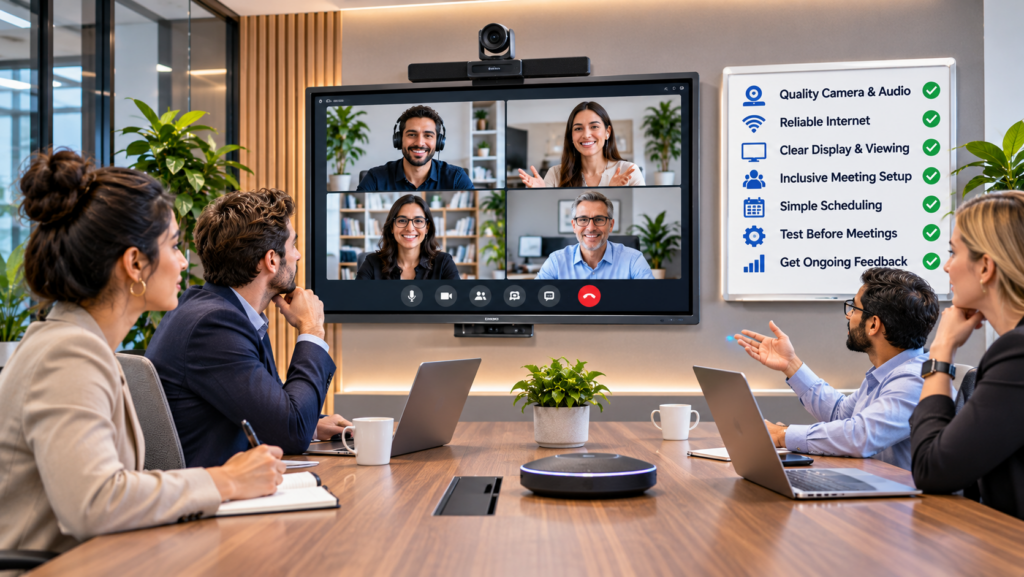
A meeting room designed for in-person discussions does not automatically work well for remote participants. People joining online may struggle to hear conversations, see speakers clearly, follow presentations, or contribute to decisions.
To adapt meeting rooms for remote participants, organizations need reliable room audio, appropriate camera placement, accessible displays, consistent collaboration tools, and clear meeting procedures. The objective is to ensure that everyone can participate effectively, regardless of their location.
This guide explains how to upgrade an existing conference room for hybrid meetings, which equipment deserves priority, and how to avoid common installation mistakes.
What Makes a Meeting Room Suitable for Remote Participants?
A hybrid meeting room connects employees physically present in a conference space with colleagues joining from home, another office, or a different location.
Unlike a traditional conference room, it must support communication in both directions. Remote employees need to hear and see people in the room, while in-person participants must be able to follow remote contributions and shared materials.
Four requirements determine whether a room is ready for hybrid meetings:
- Audio coverage: Every participant can hear and be heard clearly.
- Video visibility: Remote employees can identify speakers and follow discussions.
- Content accessibility: Presentations, documents, and whiteboards are visible to everyone.
- Equal participation: Remote attendees can ask questions, contribute ideas, and influence decisions.
The central principle is that remote participants should not be treated as an audience watching a meeting taking place elsewhere.
1. Prioritize Room Audio Before Video Quality
Audio is often the most important part of a hybrid meeting setup. A high-resolution camera provides limited value if remote participants cannot understand what people in the room are saying.
A laptop microphone may work for one person sitting nearby, but it can struggle to capture voices from a large conference table.
The appropriate audio setup depends on room size, seating arrangement, and acoustic conditions.
| Room type | Recommended audio approach | Main consideration |
| Small meeting room | Integrated speakerphone or video bar | Capture voices from all seats |
| Medium conference room | Table microphones or expandable microphone arrays | Consistent coverage across the table |
| Large meeting room | Distributed microphones and dedicated speakers | Coverage, echo control, room acoustics |
| Training room | Presenter microphone with suitable room audio | Clear speech during movement |
Microsoft’s meeting room planning guidance emphasizes microphone coverage for every seat and the importance of using one coordinated audio system for the room.
Microsoft Learn+1
Common mistake: Allowing several employees in the same room to join a meeting with their laptop microphones and speakers enabled. This can create echoes and acoustic feedback.
Use the conference room’s primary audio system. Employees who join on personal devices to access chat or shared content should generally mute their microphones and speakers.
2. Position Cameras to Show Every Participant
Camera placement determines whether remote participants can follow the conversation naturally.
A camera positioned too far away may make faces difficult to distinguish. A poorly selected angle may hide participants sitting at the ends of a conference table.
For smaller rooms, a wide-angle camera integrated into a video bar may provide sufficient coverage.
Larger spaces may benefit from cameras with automatic framing, speaker tracking, or multiple viewing angles.
Choose Cameras Based on Room Layout
| Camera type | Suitable scenario | Limitation |
| Fixed wide-angle camera | Small rooms and huddle spaces | Faces may appear small in larger rooms |
| Auto-framing camera | Meetings with changing participant positions | Framing behavior varies between products |
| Speaker-tracking camera | Discussions with multiple speakers | May not follow rapid exchanges perfectly |
| PTZ camera | Large conference rooms and presentations | Requires suitable positioning and configuration |
Place the main camera close to the display showing remote participants. This helps create more natural eye contact between people in the room and those joining online.
Microsoft Research also recommends considering the alignment of cameras, speakers, and displays because their relative positions influence how naturally participants interact.
Microsoft Research
Practical test: Ask a remote colleague to identify who is speaking from each seat. If several people are difficult to distinguish, adjust the camera position or framing before purchasing additional equipment.
3. Arrange Displays for Equal Visibility
Remote participants need to be visible to employees in the meeting room, and shared content must remain easy to follow.
A single display may be sufficient for a small room. However, when presentations occupy the entire screen, remote participants can become visually disconnected from the discussion.
A dual-display setup can help separate these functions.
One display shows meeting participants, while the second displays presentations, shared documents, or other content.
For example, during a project review, employees in the room can follow a remote colleague’s presentation while still seeing their reactions and questions.
The number of screens should depend on the room’s dimensions and actual meeting requirements rather than a fixed installation standard.
Avoid Physical Whiteboards That Remote Employees Cannot Read
Traditional whiteboards create a common hybrid meeting problem. People in the room can read handwritten notes, but remote participants may see only a blurred or distant surface.
Possible solutions include sharing a digital whiteboard, using a dedicated content camera, or transferring essential notes into a shared document.
The important requirement is that everyone receives the same information.
4. Choose Video Conferencing Software That Fits the Room
Meeting room equipment must work reliably with the organization’s communication platform.
For business video conferencing, important capabilities include room system compatibility, screen sharing, participant management, meeting scheduling, and support for the organization’s preferred infrastructure.
Different products offer different approaches.
Microsoft Teams Rooms and Zoom Rooms provide meeting room environments built around their respective collaboration ecosystems.
TrueConf Room can be used to equip conference rooms for video meetings, while TrueConf Server provides self-hosted corporate messaging and conferencing infrastructure. This arrangement may be relevant to organizations that need control over deployment and communication services.
The appropriate solution depends on existing hardware, supported endpoints, administrative requirements, and network architecture.
Check Compatibility Before Purchasing Equipment
A camera supporting 4K video does not necessarily guarantee 4K transmission during an online meeting.
Likewise, a conference room system may support a particular video service without offering all the same features as its desktop application.
Before deployment, verify camera and microphone compatibility, supported conferencing platforms, screen-sharing capabilities, user authentication, and software update requirements.
Practical distinction: Device compatibility and full feature interoperability are not the same thing.
5. Connect Meeting Rooms With Team Communication
A hybrid meeting is often only one stage of a larger collaboration process.
Employees may discuss a problem during a video call, share supporting documents, and assign follow-up tasks afterward.
If these activities occur across disconnected systems, important information may be lost.
Using secure collaboration apps can help teams share project materials and communicate across locations, provided that access controls and information-handling policies are configured appropriately.
An instant chat messenger can also support quick questions, meeting follow-ups, and coordination between sessions.
However, messaging tools should not become the only place where important decisions are recorded.
For example, if a team agrees to change a project deadline during a meeting, the updated date should appear in the authoritative project record, not remain buried in a chat conversation.
This reduces the risk of employees working with conflicting instructions.
6. Design Meetings Around Remote Participation
Even well-equipped rooms can create unequal meeting experiences.
In-person participants may interrupt each other naturally, hold side conversations, or refer to information outside the camera’s view. Remote employees may struggle to enter the discussion.
Meeting procedures should compensate for these differences.
A practical approach includes distributing agendas before meetings, making shared documents accessible, allowing remote attendees to contribute, and recording decisions afterward.
Consider a meeting where six employees are together in a conference room and two colleagues join remotely.
If everyone in the room begins discussing a printed document, remote participants may lose context. Sharing the digital version ensures that everyone can review the same material.
Likewise, the meeting organizer should periodically invite remote participants to contribute rather than relying on them to interrupt an ongoing conversation.
Important distinction: Equal participation does not require everyone to use identical equipment. It requires comparable access to information and opportunities to influence decisions.
7. Test the Room With Real Hybrid Meeting Scenarios
A successful equipment installation does not guarantee a successful meeting.
Testing should reproduce the conditions employees will encounter during everyday use.
Rather than checking only whether the camera turns on and the microphone works, organize a trial meeting with participants inside and outside the room.
| Test | What to verify | Warning sign |
| Audio coverage | Every seat can be heard | Remote participants repeatedly request clarification |
| Video framing | Participants are visible | Speakers appear too distant or outside the frame |
| Screen sharing | Remote employees can read content | Small text or missing information |
| Microphone management | No distracting echo or feedback | Audio loops or duplicated sound |
| Participant interaction | Remote employees can contribute | Discussion remains dominated by the room |
| Meeting controls | Authorized users can join and share | Incorrect permissions or access failures |
If problems appear, identify whether they result from equipment placement, device configuration, network performance, or meeting procedures.
Replacing hardware should not be the first response when a configuration change could resolve the issue.
Common Hybrid Meeting Room Problems
The following problems are particularly useful to diagnose because they often look like hardware failures even when their causes differ.
| Problem | Likely cause | Recommended action |
| Remote participants cannot hear people at the far end of the table | Inadequate microphone coverage | Reposition or expand microphones |
| Remote employees appear too small | Display or layout limitations | Adjust the video layout or use a second display |
| Echo during meetings | Multiple active audio devices | Use one coordinated room audio system |
| Participants cannot read whiteboard notes | Poor camera framing or resolution | Use a content camera or shared digital whiteboard |
| Remote employees rarely speak | Meeting facilitation problem | Introduce structured participation |
| Meeting room devices frequently disconnect | Network or system configuration issue | Test connectivity and room system logs |
A useful diagnostic principle is to separate technical quality from participation quality.
If remote participants can hear and see everyone but still cannot contribute, buying another camera is unlikely to solve the problem.
How to Choose Equipment for Different Meeting Room Sizes
Room capacity alone should not determine equipment selection. Seating arrangements, furniture, acoustics, and meeting activities also matter.
| Room size | Typical equipment | Primary priority |
| Small room, 2–4 people | Integrated video bar, display | Simple operation |
| Medium room, 5–10 people | Wide-angle camera, expanded microphone coverage, one or two displays | Equal audio and video coverage |
| Large room, 10+ people | Distributed audio, advanced cameras, multiple displays | Coverage and room control |
| Training or presentation room | Presenter microphone, suitable cameras, large displays | Speaker visibility and content sharing |
These are illustrative categories, not universal technical specifications. Final equipment selection should follow a room assessment and the manufacturer’s supported coverage requirements.
Existing equipment may also be reusable. Upgrading microphones or repositioning a camera can sometimes improve the meeting experience without replacing the entire room system.
Conclusion
Adapting meeting rooms for remote participants requires more than installing a webcam and opening a conferencing application.
Organizations should prioritize clear audio, appropriate camera coverage, accessible content, compatible software, and meeting procedures that support equal participation.
The most effective upgrades address problems observed during actual meetings. A smaller room may need only a well-positioned video bar, while a larger conference space may require distributed microphones and more advanced camera systems.
The goal is not to make remote participants feel as though they are watching a meeting. It is to make them full participants in the discussion and decision-making process.