
How to remove Apple ID from iPhone depends on your situation. With the password, sign out in Settings. Without it, reset the password at iforgot.apple.com,...
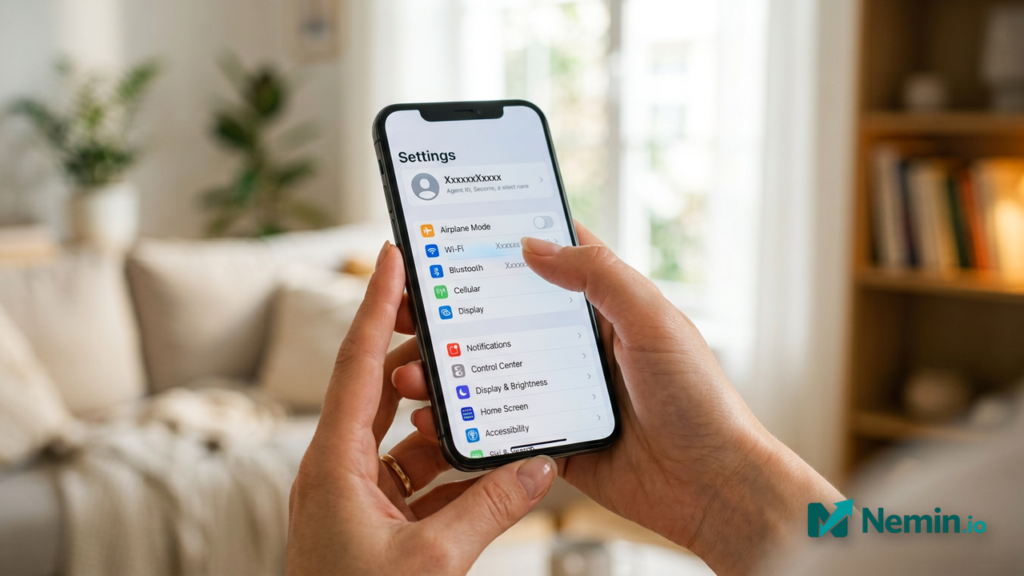
How to remove Apple ID from iPhone depends on your situation. With the password, sign out in Settings. Without it, reset the password at iforgot.apple.com, ask the previous owner to remove the device, or contact Apple Support with proof of purchase. This guide explains how to remove Apple ID from iPhone in seven proven ways, so you know exactly how to remove Apple ID from iPhone safely in every case.
The short version of how to remove Apple ID from iPhone is simple: verify ownership, then follow the matching method below, and the full details of how to remove Apple ID from iPhone are in the sections ahead. Every method below is a tested way to remove Apple ID from iPhone, and this guide is how to remove Apple ID from iPhone step by step.
Every iPhone owner eventually asks how to remove Apple ID from iPhone, whether selling, trading in, or setting up a second-hand phone. The Apple ID connects your device to the App Store, iCloud, Find My, and every Apple service, and a clean handoff starts with removing that account. If you searched how to remove Apple ID from iPhone today, the answer is in the seven methods below.
How to remove Apple ID from iPhone depends on whether the account belongs to you. When it is your own Apple ID, the password is the key, and when it belongs to a previous owner, their cooperation or Apple’s ownership check is required. This guide answers how to remove Apple ID from iPhone in seven proven ways, so you will know how to remove Apple ID from iPhone safely no matter which case you face.
It covers both how to remove Apple ID from iPhone with the password and how to remove Apple ID from iPhone without one. Whichever category you fall into, there is a method here that shows how to remove Apple ID from iPhone for your exact situation.
Before You Start: Ownership, Activation Lock, and Honesty
Apple ID removal is tied to Activation Lock, the security feature that stops a lost or stolen iPhone from being used by someone else. Activation Lock is hard to bypass on purpose, because it makes a stolen iPhone worthless to a thief. Every method here assumes you are working on a device you own or are authorized to manage, and that assumption is the foundation of every safe way to remove Apple ID from iPhone. Without that foundation, no advice about how to remove Apple ID from iPhone is safe to follow.
If the iPhone shows Activation Lock during setup and you are not the original owner, contact the previous owner or Apple with proof of purchase. Bypassing the lock on a device you do not own is illegal in many places, so the first step in how to remove Apple ID from iPhone is confirming your right to do it.
Keep your paperwork, because proof of ownership is the strongest tool when you need to know how to remove Apple ID from iPhone the official way, and that ownership check applies to every version of how to remove Apple ID from iPhone in this guide. If you skip this step, you are not learning how to remove Apple ID from iPhone, you are risking the device.
Always begin how to remove Apple ID from iPhone by asking who owns the phone, because the answer decides how to remove Apple ID from iPhone that is lawful for you. That single question determines how to remove Apple ID from iPhone for your device, and it prevents almost every mistake.
Method 1: How to Remove Apple ID from iPhone With the Password by Signing Out in Settings
The simplest way to remove Apple ID from iPhone is the sign out option in Settings. Open Settings, tap your name, scroll to the bottom, and tap Sign Out. Enter your Apple ID password when asked, and choose whether to keep a copy of your data. This direct route is how to remove Apple ID from iPhone that Apple designed for the owner, and it is how to remove Apple ID from iPhone that most tutorials show first.
Signing out turns off Find My, removes the Apple ID, and clears the account from iCloud and the App Store. Your data stays on the phone if you choose to keep it, and the iPhone becomes ready for a new owner. This is the method to use before you sell or trade in your iPhone, and it is the answer most owners find when they search how to remove Apple ID from iPhone with the password handy.
If you know your credentials, learning how to remove Apple ID from iPhone this way takes less than a minute, and it is the easiest route to remove Apple ID from iPhone of all the options here. Whenever anyone asks how to remove Apple ID from iPhone and has the password, this is the recommended answer, and it is how to remove Apple ID from iPhone without touching a computer.
For the vast majority of owners, this is how to remove Apple ID from iPhone that they will ever need, and it is the first method to remove Apple ID from iPhone that everyone should try. It is also how to remove Apple ID from iPhone that works on every iOS version, which makes it the most reliable method to remove Apple ID from iPhone.
Method 2: How to Remove Apple ID from iPhone With a Password Reset at iforgot.apple.com
If you want to remove Apple ID from iPhone but you have forgotten the password, the official fix is account recovery at iforgot.apple.com. This is the original owner’s path, and it requires the recovery information linked to the account, such as a trusted phone number, a trusted email, or another Apple device. Recovering the password is how to remove Apple ID from iPhone when the login is the only thing missing, and it is how to remove Apple ID from iPhone that keeps your data safe.
Visit iforgot.apple.com from any browser, enter the Apple ID email, and follow the identity verification steps. Once you reset the password, sign in on the iPhone and sign out through Settings using Method 1. Account recovery is free and keeps all your data intact, and it is the best answer when you own the account but lost the password and need to know how to remove Apple ID from iPhone without the old one.
For most owners, resetting the password is the fastest way to remove Apple ID from iPhone when the original login is lost, and it is the safest method to remove Apple ID from iPhone because Apple runs the entire process. If you ask Apple directly how to remove Apple ID from iPhone, this is the first option they recommend, and it is how to remove Apple ID from iPhone without any third-party help.
Waiting for recovery is how to remove Apple ID from iPhone when you have no backup access at all, and it is how to remove Apple ID from iPhone that costs you nothing. For that reason, it is how to remove Apple ID from iPhone that most experts suggest you try before any paid option.
Method 3: How to Remove Apple ID from iPhone on a Used Device by Asking the Previous Owner
When you bought a used iPhone and it still shows the previous owner’s Apple ID, the fastest legitimate fix is to ask that owner for help. The previous owner can sign in to iCloud.com or open Find My, select the iPhone, choose Erase iPhone if needed, and then tap Remove from Account. This cooperation is how to remove Apple ID from iPhone when the account belongs to someone else, and it is how to remove Apple ID from iPhone that requires no technical skill.
Once the device leaves their account, Activation Lock is cleared, and you can set up the iPhone with your own Apple ID. This is the standard way to transfer ownership, and it is why buying from a seller who can remove the device in front of you is the safest purchase. If the seller cannot or will not help, treat that as a warning sign, because the cleanest way to remove Apple ID from iPhone on a used device starts with the previous owner.
When both parties cooperate, you can remove Apple ID from iPhone in a few minutes, and knowing how to remove Apple ID from iPhone this way protects your purchase. Asking first is always how to remove Apple ID from iPhone on a second-hand purchase, and it is the cheapest way to remove Apple ID from iPhone because it costs nothing. It is also how to remove Apple ID from iPhone that avoids every risk of third-party software, and it is how to remove Apple ID from iPhone that keeps the sale honest.
Method 4: How to Remove Apple ID from iPhone Through Apple Support With Proof of Purchase
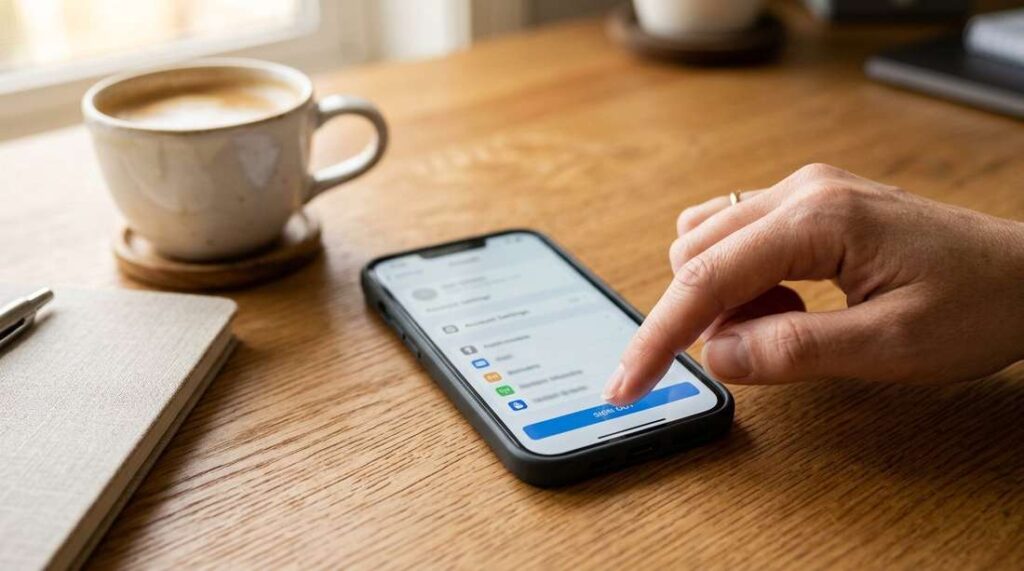
If you cannot reach the previous owner but you bought the iPhone legitimately, Apple Support is the official route. Apple will remove Activation Lock and help you remove Apple ID from iPhone, but only after it verifies that you own the device, and the proof required is a valid purchase receipt or invoice showing the serial number or IMEI. This verification is how to remove Apple ID from iPhone when there is no password and no previous owner, and it is how to remove Apple ID from iPhone that relies on documents instead of accounts.
Go to Apple’s Activation Lock support page, submit the ownership request form, and attach your proof of purchase. Apple reviews the case, and if everything matches, it removes the lock from its servers so you can complete setup. This method takes longer because it involves a human review, but it is the only official option when the previous owner is unavailable.
It is the safest way to remove Apple ID from iPhone when ownership documents exist, and it is the method to use to remove Apple ID from iPhone without any password at all. It remains the most reliable path to remove Apple ID from iPhone for legitimate second-hand owners, and knowing how to remove Apple ID from iPhone through Apple keeps you on the legal route from start to finish.
For anyone with a receipt, this is how to remove Apple ID from iPhone that Apple itself stands behind, and it is how to remove Apple ID from iPhone with the strongest official backing. It is also how to remove Apple ID from iPhone that works even when every other method has failed, which is why it is the last official method to remove Apple ID from iPhone.
Method 5: How to Remove Apple ID from iPhone With a Factory Reset Only When Find My Is Off
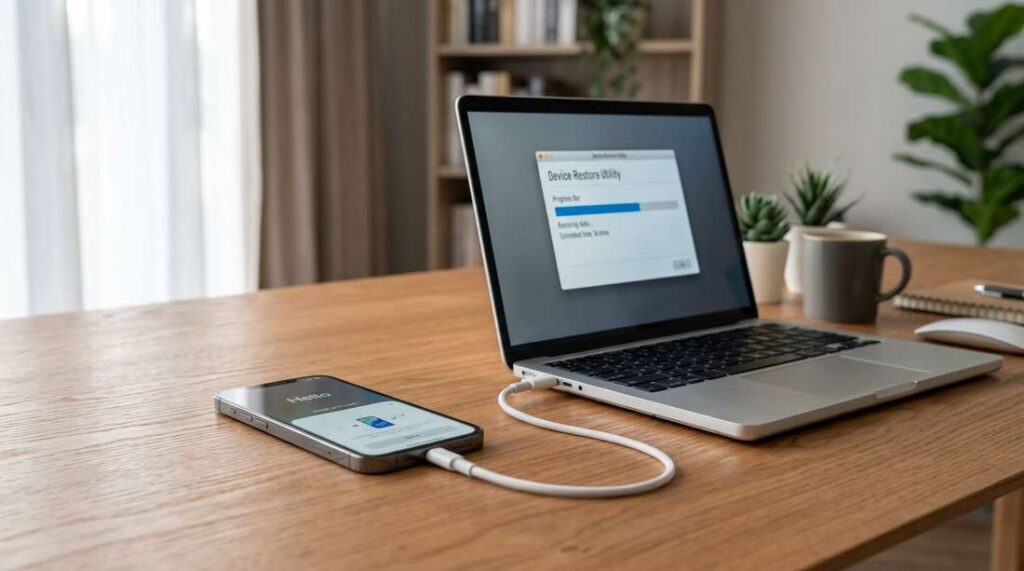
Some users believe a factory reset alone removes the Apple ID, and that is only true in one case. If Find My is already off and the Apple ID is not signed into the device, erasing the iPhone through Settings, or restoring it through a computer, clears all data and lets you set up the device fresh. For that narrow case, a reset is how to remove Apple ID from iPhone with no password needed, and it is how to remove Apple ID from iPhone that takes the least preparation.
The important warning is that a reset does not remove Activation Lock. If Find My is on, erasing the iPhone does not disconnect it from the Apple ID, and the setup screen will still ask for the original credentials. Use this method only when you have already signed out or when the device has no account attached, and back up anything you want to keep first. Otherwise, a reset is not how to remove Apple ID from iPhone, it is how to lose your data for nothing.
A reset is the data-heavy route to remove Apple ID from iPhone, and understanding this limit is essential before you try to remove Apple ID from iPhone with a reset alone. It is the one method where people most often assume they know how to remove Apple ID from iPhone and are wrong, so check Find My first.
The correct order for how to remove Apple ID from iPhone with a reset is always sign out, then erase, and that order is how to remove Apple ID from iPhone without leaving a trace. When Find My is off, this is how to remove Apple ID from iPhone that costs nothing and needs no Apple account at all, and it is how to remove Apple ID from iPhone that resets the device completely.
Method 6: How to Remove Apple ID from iPhone With a Specialized Tool on Your Own Device
When the official routes do not apply, specialized software offers another path, and tools such as Magfone’s Apple ID removal solution are designed for this job. These tools connect your iPhone to a computer and remove the Apple ID, and the Magfone guide on how to remove Apple ID from iPhone explains the exact steps. For owners who qualify, the tool is how to remove Apple ID from iPhone with software instead of Apple, and it is how to remove Apple ID from iPhone that many people turn to as a last resort.
The critical rule for this method is ownership. Use a removal tool only on a device that belongs to you or that you are authorized to manage, because using it on someone else’s iPhone is unethical and potentially illegal. Tools also carry risks, including data loss, firmware changes, or reduced support from Apple, so back up your data first and follow the instructions exactly. A tool is how to remove Apple ID from iPhone only when the phone is unquestionably yours.
When used correctly on your own device, a removal tool can be the practical way to remove Apple ID from iPhone when other methods are closed. Understand that learning how to remove Apple ID from iPhone with software still requires the phone to be yours, and the tool is one more option in your toolkit to remove Apple ID from iPhone.
Many tutorials show how to remove Apple ID from iPhone with a tool, and this guide shows the one rule that keeps it legal, which is how to remove Apple ID from iPhone on hardware you own. For people who have exhausted Apple’s options, this is how to remove Apple ID from iPhone that actually works on supported models, and it is how to remove Apple ID from iPhone when you have no other route.
Method 7: How to Remove Apple ID from iPhone Remotely From Your Apple Account
There is one more scenario, and it happens when the iPhone is lost or you have already moved to a new phone. You can remove the old iPhone from your Apple account remotely by signing in to iCloud.com, opening Find My iPhone, selecting the device, and choosing Erase iPhone followed by Remove from Account. That remote path is how to remove Apple ID from iPhone without holding the device at all, and it is how to remove Apple ID from iPhone that works from anywhere in the world.
This method protects your data on a lost device and clears the Apple ID from that iPhone, so if the phone is recovered or resold later, it is ready for a new owner. It is also the correct cleanup step after you have sold a phone, because it confirms the device is no longer linked to your account.
Remote removal requires your Apple ID and password, and it works from any browser, which makes it a reliable way to remove Apple ID from iPhone you no longer hold. Even from a distance, you can remove Apple ID from iPhone completely and permanently, and this is the method most owners forget when they ask how to remove Apple ID from iPhone after a sale.
If you have ever wondered how to remove Apple ID from iPhone you already handed over, this is the answer. Before you sell, this is how to remove Apple ID from iPhone that closes the loop for good, and it is how to remove Apple ID from iPhone that protects your data after the handoff.
Which Method Should You Use? A Quick Comparison
The table below matches each situation to the best method for removing Apple ID from iPhone, and it is the fastest reference for how to remove Apple ID from iPhone in your case.
| Your Situation | Best Method | Password Needed | Data Loss |
|---|---|---|---|
| You know your password | Sign out in Settings | Yes | No |
| You forgot your password | Reset at iforgot.apple.com | No, recovery required | No |
| Used iPhone, previous owner available | Ask owner to remove from Find My | No | No |
| Used iPhone, no previous owner | Apple Support with proof of purchase | No | No |
| Find My is off, no account attached | Factory reset or restore | No | Yes |
| Official routes do not apply | Specialized tool on your own device | No | Possible |
| Lost device or moved on | Remove remotely via iCloud.com | Yes | Remote |
The pattern is simple. When the Apple ID is yours, sign out or recover the password. When it belongs to someone else, involve that owner or Apple. When you use a tool, use it only on hardware you own. Choosing the right row in this table is the fastest way to remove Apple ID from iPhone without wasted effort, and the table also shows that most people can remove Apple ID from iPhone without any password at all, which is how to remove Apple ID from iPhone in the most common cases.
When you compare the rows, you see that every path to remove Apple ID from iPhone begins with one question: who owns the device? Answer that question, and you have already figured out how to remove Apple ID from iPhone for your specific phone.
Preparing Your iPhone for Sale the Right Way
Selling a used iPhone is the most common reason people search for how to remove Apple ID from iPhone, and doing it correctly protects both you and the buyer. Start by backing up anything you want to keep, then sign out of your Apple ID in Settings, which turns off Find My and disconnects your account. This first step is how to remove Apple ID from iPhone before anything else happens.
Next, erase all content and settings, which returns the iPhone to its factory state without any account attached. Check that the setup screen appears with no Apple ID prompt, because that is the proof that the handoff is clean. Finally, remove the device from your Apple account through iCloud.com as a double check, keep your receipt, and hand the phone over with confidence. These three steps together are how to remove Apple ID from iPhone for a safe resale.
A clean iPhone sells faster and avoids the buyer who comes back because Activation Lock is still active, so every seller should know how to remove Apple ID from iPhone before listing a device. Sellers who know how to remove Apple ID from iPhone correctly protect their identity and their reputation in one step, and buyers should always confirm how to remove Apple ID from iPhone before the sale is final.
Both sides benefit when both understand how to remove Apple ID from iPhone before money changes hands, and a smooth sale is the best proof that you know how to remove Apple ID from iPhone correctly. Follow the checklist, because it is how to remove Apple ID from iPhone that resale buyers trust, and it is how to remove Apple ID from iPhone that avoids post-sale disputes.

What Not to Do When Removing an Apple ID
The shortcuts are tempting, and they are the reason this guide starts with honesty. Do not pay a random service to bypass Activation Lock on a device you cannot prove you own, because these services are often scams. Do not rely on a factory reset to remove an Apple ID while Find My is on, because it will not work. Those shortcuts are not how to remove Apple ID from iPhone, they are how to lose the phone, and they are the opposite of how to remove Apple ID from iPhone the right way.
Do not use removal tools on a phone that is not yours, because it is illegal in most jurisdictions and it is simply wrong. Apple built Activation Lock to protect owners, and every legitimate removal method respects that design. The safe path is always the one that verifies ownership, through a password, through the previous owner, or through Apple itself. When in doubt, remember that the only legitimate way to remove Apple ID from iPhone is one that the rightful owner could approve.
That safe path is also the reliable way to remove Apple ID from iPhone every time. When you stick to these rules, you can remove Apple ID from iPhone without risking your device or your legal position, and you will never need to unlearn a bad way to remove Apple ID from iPhone.
There is no secret trick to how to remove Apple ID from iPhone, only the official methods and the honest ones, and every honest method is how to remove Apple ID from iPhone that you can defend. The rules in this section are how to remove Apple ID from iPhone safely, and they apply to every method above, which makes them how to remove Apple ID from iPhone that stays valid in any situation.
Frequently Asked Questions
How to remove Apple ID from iPhone without the password?
Reset the password at iforgot.apple.com if you own the account, ask the previous owner to remove the device from Find My, or contact Apple Support with proof of purchase to remove Apple ID from iPhone.
Does a factory reset remove Apple ID from iPhone?
No, a reset only removes the Apple ID when Find My is off. If Find My is on, Activation Lock stays and the setup screen still asks for the original account.
How to remove Apple ID from iPhone that I bought used?
Ask the previous owner to remove the device from their account, or submit a request to Apple Support with your proof of purchase to remove Apple ID from iPhone. Both routes are valid ways to remove Apple ID from iPhone, and the fastest depends on the seller.
Is it legal to remove an Apple ID without the password?
Removing the Apple ID on a device you own is legitimate, but bypassing Activation Lock on a device you do not own is illegal in many places.
How long does Apple Support take to remove Activation Lock?
Apple reviews each ownership request individually, and approval can take several days depending on the case, after which you can remove Apple ID from iPhone normally. Patience is part of how to remove Apple ID from iPhone through official channels.
What happens to my data when I remove Apple ID from iPhone?
Signing out keeps your data on the device, while erasing the iPhone removes all data, so back up before you erase.
Do third-party tools really remove Apple ID from iPhone?
Specialized tools can work on supported devices, but use them only on your own iPhone and follow the instructions exactly, because a tool is only a valid way to remove Apple ID from iPhone on hardware you own.
How to remove Apple ID from iPhone before selling it?
Back up your data, sign out of your Apple ID, erase all content and settings, and remove the device from your account through iCloud.com before you sell, and that sequence is the complete way to remove Apple ID from iPhone for a sale.
Conclusion
There is no single method that fits every owner, and that is why this guide covers seven proven ways to remove Apple ID from iPhone. If you know the password, sign out in Settings. If you forgot it, recover the account at iforgot.apple.com. If the Apple ID belongs to a previous owner, ask them to remove the device or contact Apple Support with proof of purchase. If Find My is off, a reset works, and if official routes are closed, a specialized tool on your own device is the remaining option.
Each of these is a legitimate method to remove Apple ID from iPhone, and the right one depends on your case. Match your situation to a method, and you will know how to remove Apple ID from iPhone that fits your phone, which is how to remove Apple ID from iPhone without guesswork.
The most important takeaway is ownership. Every safe method to remove Apple ID from iPhone starts with the fact that the device is yours or that you are authorized to manage it, and every shortcut that ignores that fact is where people get into trouble. Keep your receipts, keep your recovery details current, and choose the official path first, because the official path is the dependable way to remove Apple ID from iPhone, and it is how to remove Apple ID from iPhone with the least risk.
Whether you are selling an iPhone, setting up a used one, or cleaning up your account, the seven methods here give you a complete toolkit. Start with the simplest method that matches your situation, verify that Activation Lock is gone before you hand the device to anyone, and you will have solved the problem properly.
That is the whole answer to how to remove Apple ID from iPhone, done safely, legally, and for good, and it is the answer you can rely on every time you need to remove Apple ID from iPhone in the future.
Bookmark this guide, because knowing how to remove Apple ID from iPhone is a skill every owner uses more than once, and it is how to remove Apple ID from iPhone that stays useful for years. When you share this guide, you are sharing how to remove Apple ID from iPhone that helps other owners do it the right way, and that is how to remove Apple ID from iPhone that keeps the whole community safe.
IMPORTANT DISCLAIMER
This article is for educational purposes only. Removing an Apple ID or bypassing Activation Lock should be done only on a device you own or are authorized to manage. Bypassing Activation Lock on a lost, stolen, or otherwise unauthorized device is illegal in many jurisdictions, may damage the device, and may permanently disable it. Apple’s official methods are password recovery, previous-owner removal through Find My, and Apple Support verification with proof of purchase. Third-party tools carry risk, including data loss and reduced support, and any use of them is at your own responsibility. Follow all applicable laws and Apple’s terms, and contact Apple Support for official assistance.
Sources and Disclaimer
This guide draws on public information from Apple’s support documentation, including the Activation Lock support process, iforgot.apple.com account recovery, and Find My remote erase instructions, together with the Magfone guide to removing Apple ID from iPhone and published advice from reputable technology sources. Apple’s interfaces, policies, and device behaviors change with each iOS release, so verify current steps with Apple’s official documentation before acting. This article is educational, does not constitute legal advice, and is not an endorsement of any third-party tool or service.