
The CompTIA A+ 220-1202 exam focuses on the software, security, troubleshooting, and operational knowledge that IT support professionals use in daily work. Candidates need to...
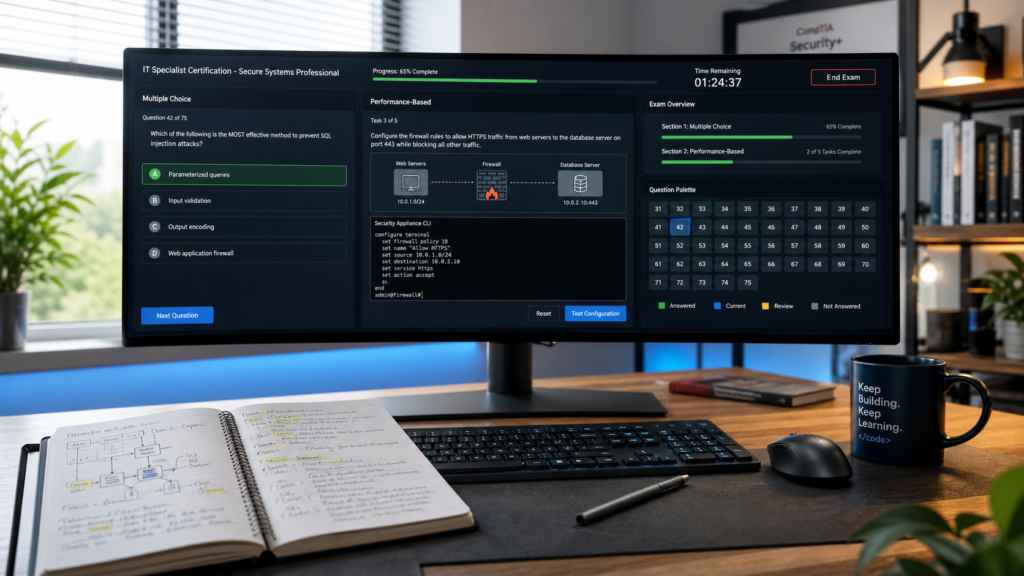
The CompTIA A+ 220-1202 exam focuses on the software, security, troubleshooting, and operational knowledge that IT support professionals use in daily work.
Candidates need to understand how operating systems behave, how Windows administrative tools support troubleshooting, and how security practices reduce risk across users and devices. The exam also expects practical thinking, not just memorized definitions.
This guide reviews several areas that often appear in Core 2 preparation, including Windows administration, network configuration, access controls, encryption, malware protection, and social engineering awareness.
Essential Windows Administration Techniques
Task Manager, Disk Management, Registry Editor, and network configuration tools are part of the Windows administration knowledge covered in the CompTIA A+ Core 2 exam objectives.
Candidates should be familiar with what these tools do, where to find them, and how they support common troubleshooting tasks.
Task Manager and System Monitoring
Press Ctrl+Shift+Esc to launch Task Manager quickly. This shortcut is useful when a system slows down or an application freezes. You can also right-click the taskbar and select Task Manager, or press Windows Key + X to open the Quick Access Menu.
Candidates should understand how to use the Processes tab to identify applications and background services consuming excessive CPU, memory, disk, or network resources.
Sorting resource columns can help pinpoint performance issues. For focused exam practice, Crucial Exams provides CompTIA A+ 220-1202 practice questions, flashcards, and performance-based questions aligned with Core 2 study topics.
The Performance tab displays graphs for CPU, memory, disk, and network activity. Double-click the left sidebar to create a compact floating view of those graphs. You can also select one category and double-click the right panel to isolate that metric.
Task Manager can also sit in the system tray and show CPU usage. If the icon is hidden, look behind the upward arrow in the notification area.
Hover over the icon to view memory, disk, and network usage without opening the full window. Enabling “Hide when minimized” keeps Task Manager active in the tray without cluttering the taskbar.
The Details tab provides deeper process information, including process IDs and memory consumption. Right-clicking a process allows you to set priority levels or view wait chains.
The Services tab lists background services and can be used to start, stop, or restart services during troubleshooting.
Disk Management and Partitioning
Right-click the Start button and select Disk Management to launch the utility. To create a new partition, you need unallocated space on a drive.
Right-click the unallocated space, select New Simple Volume, and follow the wizard to choose the size, assign a drive letter, and select a file system.
Basic disks support primary and extended partitions. In older partitioning schemes, the first three partitions can be primary, while additional partitions can be logical drives inside an extended partition. Windows needs a bootable system partition to start correctly.
You can shrink an existing volume to create unallocated space. Right-click the volume, select Shrink Volume, and enter the amount in megabytes.
For example, shrinking a volume by 10GB requires entering 10240MB. The freed space can then be used for a new volume or added to another compatible volume.
Windows Registry Fundamentals
The Windows Registry stores configuration settings for the operating system and installed applications. This hierarchical database affects boot behavior, user preferences, hardware settings, and application configuration.
Open Registry Editor by pressing Windows Key + R, typing regedit, and pressing Enter. Approve the User Account Control prompt if it appears. The left pane shows a tree structure with five main hives:
- HKEY_CLASSES_ROOT: File associations and COM object registrations
- HKEY_CURRENT_USER: Settings for the currently signed-in user
- HKEY_LOCAL_MACHINE: System-wide settings affecting all users
- HKEY_USERS: All user profiles on the computer
- HKEY_CURRENT_CONFIG: Current hardware profile information
Back up the Registry before making changes. Select File > Export, choose “All” for the export range, name the backup file, and save it somewhere safe. If a change causes problems, the .reg file can be used to restore the exported settings.
Registry keys contain subkeys and values. Values store configuration data as strings, binary data, or DWORD numbers. Incorrect edits can cause serious system issues, including startup failures.
For the CompTIA A+ exam, candidates should focus on understanding the Registry’s purpose and structure rather than making risky changes.
Network Configuration in Windows
Check adapter settings through Settings > Network & Internet > Advanced network settings. You can also open adapter properties from the classic Control Panel network settings.
Connection details may include the MAC address, IP address, subnet mask, default gateway, DHCP server, and DNS servers.
Running ipconfig /all from the Command Prompt displays configuration details for all network adapters, including virtual adapters. Common parameters include /release to drop the current IP address, /renew to request a new address from DHCP, and /flushdns to clear the DNS resolver cache.
To configure an IPv4 address manually, open the adapter properties, select Internet Protocol Version 4 (TCP/IPv4), and choose Properties. Select “Use the following IP address” and enter the IP address, subnet mask, and default gateway. DNS servers are entered in the separate fields below.
The netsh command can modify network settings from the command line. A static IP assignment may look like this: netsh interface ipv4 set address name=”Ethernet” static 192.168.5.12 255.255.255.0 192.168.1.10
To switch back to DHCP, use:
netsh interface ipv4 set address name=”Ethernet” source=dhcp
These commands require the adapter name to match exactly. DNS settings determine which servers resolve domain names into IP addresses.
Common alternatives to ISP defaults include Cloudflare, Google Public DNS, and OpenDNS. Changing DNS may improve reliability, speed, or filtering options depending on the provider and environment.
Security Fundamentals You Must Know
Security is one of the major domains in the CompTIA A+ Core 2 objectives. Physical safeguards, access control, encryption, malware defense, and social engineering awareness all support the same goal: protecting systems, users, and data.
Physical Security Measures
Badge access systems manage who can enter a building or restricted area. When someone scans a badge at a reader, the system checks authorization and either unlocks the door or denies entry. Unauthorized attempts may create alerts and can be paired with video review.
Proximity cards use RFID technology for contactless scanning. Smart cards include embedded chips that support stronger authentication. Some environments combine badges with biometrics, such as fingerprints or facial recognition, so the badge alone is not enough to gain access.
Laptop locks reduce the risk of device theft in offices, classrooms, libraries, and other shared spaces. Cable locks secure devices to desks or other fixed objects. Physical security also includes everyday habits.
Lock the screen before stepping away, set devices to auto-lock after inactivity, avoid leaving equipment unattended, and maintain backups so device theft does not also mean permanent data loss.
Access Control and User Permissions
User Account Control prompts appear when a change requires administrator privileges. UAC helps prevent software from running with elevated rights without user approval.
Standard user accounts are suitable for daily work, while administrator accounts provide broader control and should be limited.
NTFS permissions determine file and folder access at the file system level. Standard permissions include Full Control, Modify, Read & Execute, List Folder Contents, Read, and Write.
Full Control allows a user to view, change, delete, and manage permissions. Modify allows reading, writing, and deleting, but not changing permissions.
When NTFS and share permissions combine, the most restrictive effective permission applies. For example, if share permissions allow Full Control but NTFS permissions allow only Read, the user receives Read access.
The principle of least privilege means users should receive only the access needed to perform their work.
Encryption Methods and Implementation
The Advanced Encryption Standard is a widely used symmetric encryption standard. AES supports 128-bit, 192-bit, and 256-bit keys and operates on 128-bit blocks of data. Candidates should understand the difference between symmetric and asymmetric encryption.
Symmetric encryption uses one secret key for both encryption and decryption. Asymmetric encryption uses a public and private key pair. The public key can encrypt data, while the private key decrypts it.
BitLocker encrypts entire drives and helps protect data if a device is lost or stolen. Encrypting File System, or EFS, encrypts individual files and folders on NTFS volumes.
Encrypted files can be accessed only by authorized accounts with the proper keys. Key management matters because lost keys can make data unrecoverable.
Passwords, recovery keys, and encryption keys should be stored securely and reviewed as part of normal security operations.
Malware Detection and Prevention
Signature-based detection compares files against known malware signatures. Since new malware appears constantly, antivirus and endpoint protection tools need regular updates.
Heuristic analysis looks for suspicious code patterns, while behavioral analysis watches program actions for unusual activity.
Real-time protection helps monitor systems continuously, but it should not be the only defense. Schedule automatic scans, scan downloaded files and attachments before opening them, keep operating systems patched, and remove unused software.
User behavior also matters. Many infections begin with unsafe downloads, malicious links, or convincing phishing messages.
Social Engineering Awareness
Phishing remains a common entry point for attacks. One reported security analysis found phishing to be the leading infection vector in 41% of incidents, ahead of exploitation of public-facing applications at 26% (Security Magazine). Social engineering works by manipulating fear, urgency, curiosity, greed, or trust.
Common phishing indicators include sender addresses that imitate legitimate businesses with small spelling changes, generic greetings, unusual grammar, and formatting that does not match the real organization. Spoofed hyperlinks may show one destination in the text but reveal another destination when hovered over.
Vishing uses phone calls, while smishing uses SMS messages. Pretexting relies on a fabricated story to gain trust, often after the attacker researches the target.
Avoid clicking links in unsolicited messages. Verify requests through known contact methods, not the phone numbers or links included in suspicious messages. Multifactor authentication also reduces risk if a password is stolen.
Conclusion
Preparing for the CompTIA A+ 220-1202 exam requires a practical understanding of Windows administration, security controls, troubleshooting habits, and user protection.
Tools such as Task Manager, Disk Management, Registry Editor, and network utilities support everyday work, while access control, encryption, malware prevention, and phishing awareness help protect systems and data.
Candidates who study these areas in context are better prepared for exam scenarios and entry-level IT responsibilities.
The strongest preparation combines objective review with hands-on practice, so concepts become easier to apply under real troubleshooting conditions.