
Maya Chen runs a one-person brand studio. On Tuesday she finished a quotation for a fictional client, Harbor Lane Retail. The numbers were right, but...

Maya Chen runs a one-person brand studio. On Tuesday she finished a quotation for a fictional client, Harbor Lane Retail. The numbers were right, but the PDF still needed a date fix, the file was too large for a clean email, and the client wanted a signed copy before kickoff. She did not need Adobe Acrobat for that. She needed a reliable free PDF toolkit, clear free-versus-paid limits, and a short delivery checklist she could repeat on every client file.
Why Freelancers Need a Reliable PDF Workflow
PDFs keep proposals, quotations, invoices, and agreements looking consistent across phones, tablets, and laptops. Clients expect a final layout they can open without hunting for fonts or rewriting your spacing. A free PDF editor and related tools help you correct small mistakes, reduce file size, add a signature, and send the document without turning editable Word files into the client-facing version.
That does not make every PDF secure or legally binding by default. Freelancers still balance presentation, file size, signature method, compatibility, and confidentiality. The same habits matter whether you export a six-slide proposal deck or a simple one-page quote, a theme covered in Nemin guides on freelancer proposal decks and professional marketing materials.
How to Edit a PDF Without Adobe Acrobat
PDF editing is not one action. Direct text editing changes the existing content. Annotations place notes, highlights, or typed overlays on top of the page. Conversion turns a PDF into Word or another editable format so you rebuild and export again. Those paths behave differently, especially on complex layouts.
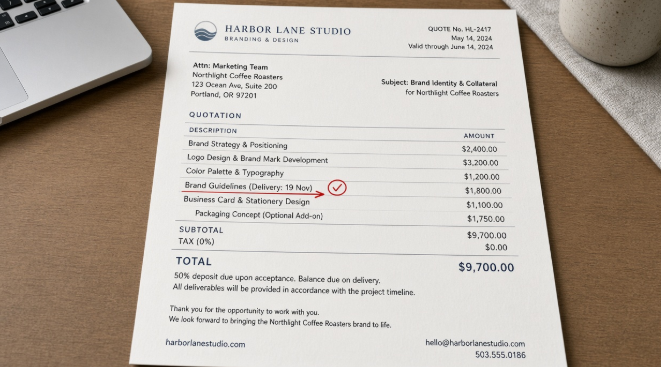
Typical freelance fixes include a typo in a line item, an outdated contact line, a wrong date, a missing note, or a logo swap where the tool supports image replacement. Scanned PDFs may need OCR before text can be edited. Conversion can shift columns, substitute fonts, or move tables and images. Some files also carry editing restrictions.
After any edit, open the pages side by side with the original. Check fonts, images, spacing, and missing content. Save a corrected copy with a clear name before you compress anything. A desktop PDF editor can cover many of these small client-document changes when you prefer not to start from Acrobat. Keep the unedited export until you are sure the corrected page still matches the original layout.
How to Compress a PDF Without Ruining Its Quality
Large embedded photos, high-resolution graphics, and scanned pages inflate email attachments and upload limits. Compression mainly targets image data and redundant content. A text-heavy quote may shrink only a little, while a proposal with product photos can drop more. Quality settings control that trade-off: smaller files can soften logos, charts, and photographs.
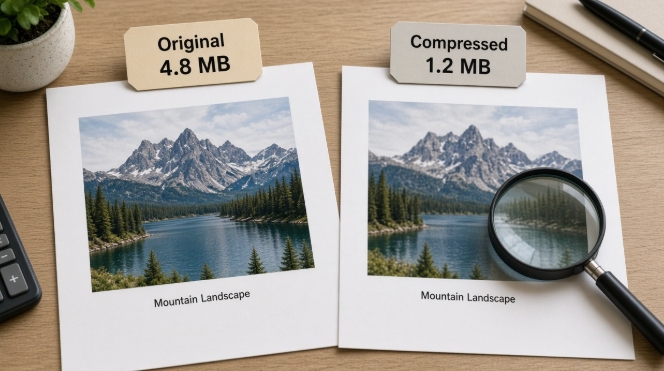
Practical process: keep a copy of the original PDF, choose a moderate compression setting first, run the compress step, compare file sizes, then inspect text, logos, charts, and images at 100% zoom. Confirm the compressed version still reads cleanly on a phone. Do not promise a fixed percentage reduction. Results depend on the source file. A PDF compressor is useful, but it is not a substitute for exporting images at a sensible resolution in the first place.
How to Sign a PDF and Prepare It for Client Delivery
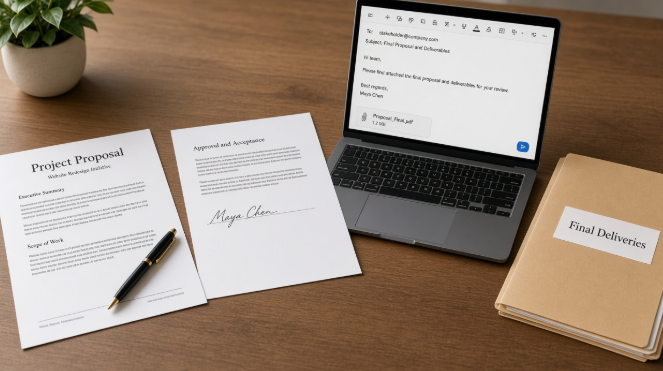
Freelancers often need a visible signature on a quote acceptance page. Methods differ. A typed name, a drawn signature, or an uploaded handwriting image can mark approval visually. An electronic-signature workflow may add routing or status tracking. A cryptographic digital signature uses a digital certificate to support authenticity and integrity checks. These are not the same in technical operation or legal assurance.
Legal recognition depends on jurisdiction, the transaction, and the signature method. A basic annotation does not automatically provide identity verification, tamper evidence, or a full audit trail. Before signing, confirm the document is final, the signatory and placement are correct, and the method matches the agreement. Save a signed final copy, keep the unsigned original when useful, and verify the signature remains readable.
Send and Archive Client PDFs Properly
Email attachments work for smaller files. Trusted cloud links or client portals help when size or version control matters. Confirm the recipient address, use a clear filename, and write a short message that names the attachment. Open the file once more before you send it. Prefer private links for confidential documents. If you add a password, share that password through a separate channel. Password protection raises the barrier for casual access; it is not a guarantee against every attack.
Archive what you sent. A simple tree works: Client name, then Proposals, Invoices, Signed agreements, and Final deliveries. Use filenames such as HarborLane_Proposal_2026-11-19_Final.pdf. Keep the editable source where appropriate, the final signed PDF, and delivery notes such as the email timestamp or shared-link record. Follow contract, tax, and local retention rules rather than guessing a universal period.
Choosing a Free PDF Toolkit
Pick tools that open PDFs reliably, edit text or annotate when needed, compress without destroying readability, support the signature method your client accepts, and let you work locally when documents are confidential. One practical option is WPS Office. Its free PDF open app covers viewing and annotation on common desktop and mobile platforms, and its PDF tools market editing, conversion, compression, and signature insertion inside one suite that also acts as a free microsoft office alternative.
Official WPS materials and help articles indicate core open, basic edit, reduce-file-size, and visual e-signature flows are available to start for free, while advanced PDF convert or OCR paths, AI image compression modes, and certificate-based digital signatures may sit behind membership or Pro+ entitlements. Confirm the current free versus paid boundary in your installed build before you rely on a premium-only step for a client deadline.
Conclusion
A workable freelance PDF workflow is short: correct the quotation, compress a copy without harming readability, sign with a method that fits the agreement, send it through a controlled channel, and archive the exact final file. With a free PDF toolkit and a careful final review, you can deliver client docs without Adobe Acrobat and still look professional every time.